PDFGen Class
Properties Methods Events Config Settings Errors
The PDFGen class creates PDF documents from scratch.
Syntax
PDFGen
Remarks
PDFGen is a versatile document generation class that can be used to create PDF documents in a highly customizable way.
Preparing the document for editing is as easy as calling CreateNew. Before calling this method, optionally configure baseline properties that you would like to apply to the new document, such as its page dimensions (SetLayout), page numbering (SetDocumentProperty), or PDF/A compliance requirements (PDFAConformanceLevel). Then start composing the document by adding content. When finished, call Close to close the document and save the changes to either OutputFile, OutputData, or the stream set in SetOutputStream.
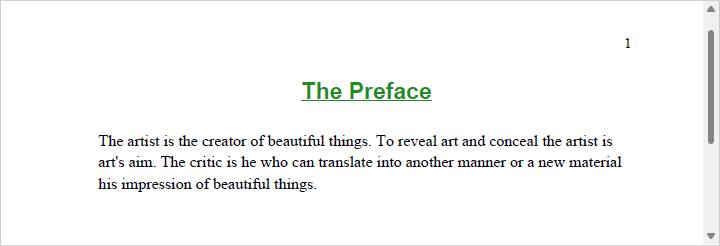
The example below configures page numbers in the right header, adds a centered title with bold and underline formatting, and finally adds a left-aligned paragraph.
PDFGen pdfgen = new PDFGen();
pdfgen.OutputFile = "output.pdf";
pdfgen.SetDocumentProperty("PageRightHeader", "%PAGENUMBER%");
pdfgen.CreateNew();

pdfgen.SetAlignment((int)HorizontalAlignments.haCenter, (int)VerticalAlignments.vaTop);
pdfgen.SetFont("Arial", "20", "bold underline", "forestgreen");
pdfgen.AddText("The Preface", false);
pdfgen.SetFont("Times New Roman", "14", "regular", "black");

pdfgen.AddBreak(0, 2);

pdfgen.SetAlignment((int)HorizontalAlignments.haLeft, (int)VerticalAlignments.vaTop);
pdfgen.AddParagraph("The artist is the creator of beautiful things. To reveal art and conceal the artist is art's aim. The critic is he who can translate into another manner or a new material his impression of beautiful things.");

pdfgen.Close();
Canvases and the Editing Process
Every editing operation performed by PDFGen goes through a canvas, which is an editing window with a set of rules and operations defined for it that is either:
- A text canvas, which can be thought of as a multi-line rich text editor;
- A drawing canvas, a rectangular random-access drawing area; or
- A table canvas, a rectangular grid of rows and columns.
The canvas types are distinct, meaning only one of them can be used at a time to create a specific piece of content. Canvases of different types can be grouped together or used as part of other canvases, which provides a powerful and flexible tool for creating content of various types and complexities. For example, a drawing canvas containing a graphic can be embedded into a text canvas containing the document body.
When CreateNew is called, the class automatically creates a page-wide text canvas (a "page canvas") so you can start adding content right away. This canvas takes into account the dimensions of the page and any margins configured. One-inch margins are set by default. Upon reaching the end of the page, the class closes the corresponding canvas, creates a new one for the next page (thus "turning the page" behind the scenes), and continues until all the content has been added.
You can always create your own canvases (and sub-canvases) should you need to add non-standard kinds of content that go beyond the traditional document layout, such as marginal notes, watermarks, or signatures.
Additionally, a canvas exists in one of three states:
- Open, where it is in the process of editing and the content can still be changed;
- Closed, where editing has been completed and the content has been finalized ("committed"); or
- Rendered, where the content has been serialized from its internal closed representation into a PDF graphics stream.
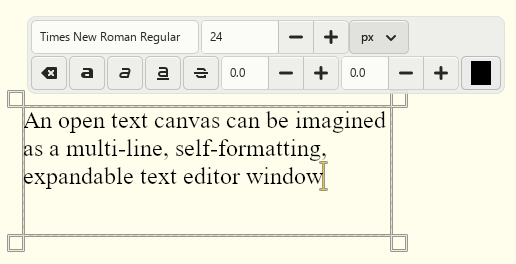
Changes made to an open canvas may influence how the content is represented in the document when the canvas is eventually rendered. For example, any text added to a center-aligned line in a text canvas will cause existing text to move leftward. Any text added to a drawing canvas - which is random access and does not offer the capability of formatting - will not affect any other content added to it previously.
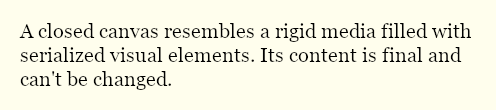
A closed canvas resembles an opaque rectangle filled with visual elements. Once a canvas is closed, all such elements become locked and their dimensions are known, which enables their absolute positions and sizes to be calculated unambiguously as the class can be certain that they will not change.
During the editing process, PDFGen creates pieces of content, fills them in, closes them, and renders them onto the page. It adds content to the document sequentially like a typewriter: once added, content cannot be deleted. However, unlike a typewriter, content can be automatically formatted by the class on a later stage. For example, updating the dimensions of a text canvas may cause elements added to it previously to be rearranged, similar to how expanding a text area control in a browser form rearranges its content.
Text Canvases
A text canvas is a vertical series of lines, each comprised of a horizontal series of elements. It is analogous to a traditional text editor and is used for creating structured (mostly textual) content, which is added element by element, line by line. Pages, signature fields added via AddSignatureField, and table cells are all kinds of text canvases.Random access is not allowed in text canvases; instead, the class stacks elements in the current line and arranges them as they are added. This means that in general, the dimensions of a text canvas (its Width and Height) are not fixed and may expand horizontally and vertically.
If the current line is full and cannot accommodate a subsequent element (and the chosen constraints do not allow for it to be expanded), in most cases the class completes the current line, adds a new one, places the cursor at the beginning of the new line, and adds the element there. However, if the element's width exceeds MaxWidth, it will not fit in the new line either, so the OutOfSpace event fires to give your code a chance to forcefully expand the canvas or cancel the insertion of the element altogether.
Similarly, exceeding MaxHeight also causes the class to automatically wrap to the next default canvas (e.g., the next page or column) or trigger OutOfSpace. Subscribe to that event to recover from failed calls in a flexible way.
Drawing Canvases
A drawing canvas is analogous to a drawing board and is used for creating free-form vector content in two-dimensional Cartesian space. A drawing canvas provides random access: primitives can be placed anywhere within its bounds in any order, and all coordinates are specified relative to the bottom-left corner of the canvas.Content is built from path primitives, which include lines, curves, and closed shapes that can be stroked, filled, or used to define clipping regions. Common shapes such as rectangles, circles, and polygons are also supported directly, as is importing SVG path data via AddDrawing and placing bitmaps via AddBitmap.
The visual appearance of each primitive is controlled by the active Pen and Brush at the time the path is started. The pen governs the stroke (color, thickness, style, line cap, and line join) and the brush governs the fill (color and opacity). Use SetPen and SetBrush to configure these properties; they remain in effect until changed.
The dimensions of a drawing canvas are fixed at creation time. Content that exceeds these bounds is clipped. When committed to its parent canvas via EndDrawing, the drawing canvas can be scaled, skewed, and rotated as needed.
When committed to a text canvas, a drawing canvas is treated as an inline element and flows with surrounding content, just like text and bitmaps. When committed to another drawing canvas, it is positioned at explicit coordinates within that canvas.
Table Canvases
A table canvas is used for creating grid-based content organized into rows and columns. The column count is fixed at creation time; rows and cells are added sequentially, and the layout engine resolves all column widths and row heights when the table is committed to its parent canvas via EndTable.Each cell is itself a text canvas, so any content that can be added to a page can also be added to a cell, including paragraphs, bitmaps, and nested drawing canvases. Cells can span multiple columns or rows, which the layout engine automatically accounts for when distributing space.
Width constraints can be specified at both the table and cell level. When no preferred width is given, the layout engine distributes available space proportionally across columns based on their content. Row heights follow the same principle: the height of each row is determined by the tallest cell it contains, unless a fixed or minimum height is specified via StartTableRow.
The Pen and Brush active when a cell is opened determine its border style and background fill. Individual cell borders can be suppressed via a bitmask passed to StartTableCell, allowing any combination of top, right, bottom, and left borders to be hidden independently.
Property List
The following is the full list of the properties of the class with short descriptions. Click on the links for further details.
| Attachments | A collection of all attached files added to the document. |
| Brush | The current brush settings. |
| Canvas | The current canvas. |
| Font | The currently set font. |
| Layout | The current page layout. |
| OutputData | A byte array containing the PDF document after processing. |
| OutputFile | The path to a local file where the output is written. |
| Overwrite | Whether the class should overwrite files. |
| PDFAConformanceLevel | The PDF/A conformance level of the document. |
| Pen | The current pen settings. |
Method List
The following is the full list of the methods of the class with short descriptions. Click on the links for further details.
| AddAttachment | Adds an attachment to the document. |
| AddBitmap | Adds a bitmap image to the current canvas. |
| AddBreak | Adds a number of breaks to the text canvas. |
| AddButton | Adds a button field to the form. |
| AddCheckBox | Adds a checkbox field to the form. |
| AddComboBox | Adds a combo box field to the form. |
| AddCopy | Adds a copy of a previously saved element to the current canvas. |
| AddDrawing | Adds a vector drawing described by an SVG path string to the current canvas. |
| AddHeading | Adds a heading to the text canvas. |
| AddLink | Adds a hyperlink to the current canvas. |
| AddListBox | Adds a list box field to the form. |
| AddListItem | Adds an item to a list, combo box, or list box. |
| AddParagraph | Adds a paragraph of text to the text canvas. |
| AddRadioButton | Adds a radio button to the form. |
| AddSignatureField | Adds a signature field to the form. |
| AddSpecial | Adds a special element to the text canvas. |
| AddTableCell | Adds a single-paragraph cell to the current table row. |
| AddText | Adds a piece of text to the current canvas. |
| AddTextBox | Adds a text box field to the form. |
| AddTitle | Adds a title to the text canvas. |
| Cancel | Cancels the current canvas. |
| Close | Closes the new document. |
| Config | Sets or retrieves a configuration setting. |
| CreateNew | Creates a new PDF document. |
| DrawCircle | Draws an ellipse or circle on the drawing canvas. |
| DrawCurveTo | Adds a cubic Bezier curve segment to the current path. |
| DrawLineTo | Adds a straight line segment to the current path. |
| DrawPolygon | Draws a polygon on the drawing canvas. |
| DrawRectangle | Draws a rectangle on the drawing canvas. |
| EndComboBox | Completes the combo box field. |
| EndContent | Completes the logical section. |
| EndDrawing | Finalizes the drawing canvas and commits it to the parent canvas. |
| EndEditing | Finalizes the text canvas and commits it to the parent canvas. |
| EndForm | Completes and closes the current interactive form. |
| EndList | Completes the list. |
| EndListBox | Completes the list box field. |
| EndListItem | Completes the list item. |
| EndParagraph | Completes the paragraph. |
| EndPath | Completes the current path and applies it to the drawing canvas. |
| EndSignatureField | Completes the signature field. |
| EndTable | Finalizes the table canvas and commits it to the parent canvas. |
| EndTableCell | Completes the current table cell. |
| EndTableRow | Completes the current table row. |
| GetDocumentProperty | Returns the value of a document property. |
| GetFieldProperty | Returns the value of a field property. |
| GetPageProperty | Returns the value of a page property. |
| MoveTo | Sets the current pen position on the drawing canvas. |
| RemoveAttachment | Removes an attachment from the document. |
| Reset | Resets the class. |
| SaveStyle | Saves the currently configured font, pen, and brush as a named style. |
| Scroll | Inserts a vertical gap into the text canvas. |
| SetAlignment | Sets the alignment for subsequent text insertion operations. |
| SetBrush | Sets the fill properties used when drawing shapes and cell backgrounds. |
| SetDocumentProperty | Sets the value of a document property. |
| SetFieldProperty | Sets the value of a field property. |
| SetFont | Sets the font properties to be applied to text. |
| SetLayout | Sets the layout for new pages. |
| SetMargin | Sets the margin for a typical element. |
| SetOutputStream | Sets the stream to write the processed document to. |
| SetPageProperty | Sets the value of a page property. |
| SetPen | Sets the stroke properties used when drawing lines, paths, and borders. |
| SetStyle | Applies a previously saved style or one of the built-in styles. |
| StartComboBox | Begins a new combo box field for editing. |
| StartContent | Begins a new logical section. |
| StartDrawing | Initiates a new drawing canvas of the given dimensions. |
| StartEditing | Initiates a new text canvas for editing. |
| StartForm | Begins a new form. |
| StartList | Begins a new list for editing. |
| StartListBox | Begins a new list box field for editing. |
| StartListItem | Begins a new list item for editing. |
| StartParagraph | Begins a new paragraph for editing. |
| StartPath | Starts a new vector path on the drawing canvas. |
| StartSignatureField | Begins a new signature field for editing. |
| StartTable | Initiates a new table canvas with a fixed number of columns. |
| StartTableCell | Begins a new cell in the current table row. |
| StartTableRow | Begins a new row in the current table. |
Event List
The following is the full list of the events fired by the class with short descriptions. Click on the links for further details.
| ActionRequired | Fired when the class encounters a conflict that it cannot resolve on its own. |
| EditingCompleted | Fired after a canvas has been closed. |
| Error | Fired when information is available about errors during data delivery. |
| FontLookup | Fired when a required font is missing. |
| Log | Fired once for each log message. |
| OutOfSpace | Fired when an element exceeds the maximum dimensions of the current text canvas. |
Config Settings
The following is a list of config settings for the class with short descriptions. Click on the links for further details.
| AutoTurnPages | Whether to change the page automatically upon exceeding the lower page boundary. |
| CloseOutputStreamAfterProcessing | Whether to close the output stream after processing. |
| CompressStreams | Whether to compress stream objects. |
| FallbackFont | The fallback font. |
| FontPaths | The font search paths. |
| FontPolicy | The font policy to follow. |
| LogLevel | The level of detail that is logged. |
| SaveChanges | Whether to save changes made to the document. |
| SystemFontNames | The system font names. |
| TempPath | The location where temporary files are stored. |
| UsedFonts | The fonts used in the document. |
| BuildInfo | Information about the product's build. |
| CodePage | The system code page used for Unicode to Multibyte translations. |
| LicenseInfo | Information about the current license. |
| MaskSensitiveData | Whether sensitive data is masked in log messages. |
| ProcessIdleEvents | Whether the class uses its internal event loop to process events when the main thread is idle. |
| SelectWaitMillis | The length of time in milliseconds the class will wait when DoEvents is called if there are no events to process. |
| UseInternalSecurityAPI | Whether or not to use the system security libraries or an internal implementation. |
Attachments Property (PDFGen Class)
A collection of all attached files added to the document.
Syntax
PDFSDKList<PDFSDKPDFAttachment>* GetAttachments();
int SetAttachments(PDFSDKList<PDFSDKPDFAttachment>* val);
int pdfsdk_pdfgen_getattachmentcount(void* lpObj);
int pdfsdk_pdfgen_setattachmentcount(void* lpObj, int iAttachmentCount);

char* pdfsdk_pdfgen_getattachmentafrelationship(void* lpObj, int attachmentindex);
int pdfsdk_pdfgen_setattachmentafrelationship(void* lpObj, int attachmentindex, const char* lpszAttachmentAFRelationship);

int pdfsdk_pdfgen_getattachmenttype(void* lpObj, int attachmentindex);

char* pdfsdk_pdfgen_getattachmentcontenttype(void* lpObj, int attachmentindex);
int pdfsdk_pdfgen_setattachmentcontenttype(void* lpObj, int attachmentindex, const char* lpszAttachmentContentType);

char* pdfsdk_pdfgen_getattachmentcreationdate(void* lpObj, int attachmentindex);
int pdfsdk_pdfgen_setattachmentcreationdate(void* lpObj, int attachmentindex, const char* lpszAttachmentCreationDate);

int pdfsdk_pdfgen_getattachmentdata(void* lpObj, int attachmentindex, char** lpAttachmentData, int* lenAttachmentData);
int pdfsdk_pdfgen_setattachmentdata(void* lpObj, int attachmentindex, const char* lpAttachmentData, int lenAttachmentData);

char* pdfsdk_pdfgen_getattachmentdescription(void* lpObj, int attachmentindex);
int pdfsdk_pdfgen_setattachmentdescription(void* lpObj, int attachmentindex, const char* lpszAttachmentDescription);

char* pdfsdk_pdfgen_getattachmentfilename(void* lpObj, int attachmentindex);
int pdfsdk_pdfgen_setattachmentfilename(void* lpObj, int attachmentindex, const char* lpszAttachmentFileName);

char* pdfsdk_pdfgen_getattachmentmodificationdate(void* lpObj, int attachmentindex);
int pdfsdk_pdfgen_setattachmentmodificationdate(void* lpObj, int attachmentindex, const char* lpszAttachmentModificationDate);

char* pdfsdk_pdfgen_getattachmentname(void* lpObj, int attachmentindex);
int pdfsdk_pdfgen_setattachmentname(void* lpObj, int attachmentindex, const char* lpszAttachmentName);

int64 pdfsdk_pdfgen_getattachmentsize(void* lpObj, int attachmentindex);
int getAttachmentCount();
int setAttachmentCount(int iAttachmentCount);

QString getAttachmentAFRelationship(int iAttachmentIndex);
int setAttachmentAFRelationship(int iAttachmentIndex, QString qsAttachmentAFRelationship);

int getAttachmentType(int iAttachmentIndex);

QString getAttachmentContentType(int iAttachmentIndex);
int setAttachmentContentType(int iAttachmentIndex, QString qsAttachmentContentType);

QString getAttachmentCreationDate(int iAttachmentIndex);
int setAttachmentCreationDate(int iAttachmentIndex, QString qsAttachmentCreationDate);

QByteArray getAttachmentData(int iAttachmentIndex);
int setAttachmentData(int iAttachmentIndex, QByteArray qbaAttachmentData);

QString getAttachmentDescription(int iAttachmentIndex);
int setAttachmentDescription(int iAttachmentIndex, QString qsAttachmentDescription);

QString getAttachmentFileName(int iAttachmentIndex);
int setAttachmentFileName(int iAttachmentIndex, QString qsAttachmentFileName);

QString getAttachmentModificationDate(int iAttachmentIndex);
int setAttachmentModificationDate(int iAttachmentIndex, QString qsAttachmentModificationDate);

QString getAttachmentName(int iAttachmentIndex);
int setAttachmentName(int iAttachmentIndex, QString qsAttachmentName);

qint64 getAttachmentSize(int iAttachmentIndex);
Remarks
This property is used to access the details of all the attached files added to the document. Use AddAttachment and RemoveAttachment to add and remove attachments to/from this collection respectively.
This property is not available at design time.
Data Type
Brush Property (PDFGen Class)
The current brush settings.
Syntax
PDFSDKPDFBrush* GetBrush();
char* pdfsdk_pdfgen_getbrushcolor(void* lpObj);

char* pdfsdk_pdfgen_getbrushopacity(void* lpObj);
QString getBrushColor();

QString getBrushOpacity();
Remarks
This property is used to access the fill configuration most recently applied via SetBrush.
This property is read-only and not available at design time.
Data Type
Canvas Property (PDFGen Class)
The current canvas.
Syntax
PDFSDKPDFCanvas* GetCanvas();
int pdfsdk_pdfgen_getcanvastype(void* lpObj);

int pdfsdk_pdfgen_getcanvascontentanchor(void* lpObj);

int pdfsdk_pdfgen_getcanvasdrawing(void* lpObj);

int pdfsdk_pdfgen_getcanvasdrawingmode(void* lpObj);

char* pdfsdk_pdfgen_getcanvasheight(void* lpObj);

int pdfsdk_pdfgen_getcanvashorizontalalignment(void* lpObj);

char* pdfsdk_pdfgen_getcanvasmaxheight(void* lpObj);
int pdfsdk_pdfgen_setcanvasmaxheight(void* lpObj, const char* lpszCanvasMaxHeight);

char* pdfsdk_pdfgen_getcanvasmaxwidth(void* lpObj);
int pdfsdk_pdfgen_setcanvasmaxwidth(void* lpObj, const char* lpszCanvasMaxWidth);

char* pdfsdk_pdfgen_getcanvasminheight(void* lpObj);

char* pdfsdk_pdfgen_getcanvasminwidth(void* lpObj);

int pdfsdk_pdfgen_getcanvasverticalalignment(void* lpObj);

char* pdfsdk_pdfgen_getcanvaswidth(void* lpObj);

char* pdfsdk_pdfgen_getcanvasx(void* lpObj);

char* pdfsdk_pdfgen_getcanvasy(void* lpObj);
int getCanvasType();

int getCanvasContentAnchor();

bool getCanvasDrawing();

int getCanvasDrawingMode();

QString getCanvasHeight();

int getCanvasHorizontalAlignment();

QString getCanvasMaxHeight();
int setCanvasMaxHeight(QString qsCanvasMaxHeight);

QString getCanvasMaxWidth();
int setCanvasMaxWidth(QString qsCanvasMaxWidth);

QString getCanvasMinHeight();

QString getCanvasMinWidth();

int getCanvasVerticalAlignment();

QString getCanvasWidth();

QString getCanvasX();

QString getCanvasY();
Remarks
This property is used to access the details of the current canvas after one of the following methods is called:
- CreateNew (page canvas)
- StartDrawing (drawing canvas)
- StartEditing (text canvas)
- StartSignatureField (signature field canvas)
- StartTable (table canvas)
- StartTableCell (cell canvas)
This property is read-only and not available at design time.
Data Type
Font Property (PDFGen Class)
The currently set font.
Syntax
PDFSDKPDFFont* GetFont();
char* pdfsdk_pdfgen_getfontcolor(void* lpObj);

char* pdfsdk_pdfgen_getfontname(void* lpObj);

char* pdfsdk_pdfgen_getfontpath(void* lpObj);

char* pdfsdk_pdfgen_getfontsize(void* lpObj);

char* pdfsdk_pdfgen_getfontstyle(void* lpObj);
QString getFontColor();

QString getFontName();

QString getFontPath();

QString getFontSize();

QString getFontStyle();
Remarks
This property is used to access the font details specified using SetFont.
This property is read-only and not available at design time.
Data Type
Layout Property (PDFGen Class)
The current page layout.
Syntax
PDFSDKPDFPageLayout* GetLayout();
int pdfsdk_pdfgen_getlayoutcolcount(void* lpObj);

int pdfsdk_pdfgen_getlayoutcontentanchor(void* lpObj);

char* pdfsdk_pdfgen_getlayoutheight(void* lpObj);

char* pdfsdk_pdfgen_getlayoutsize(void* lpObj);

char* pdfsdk_pdfgen_getlayoutwidth(void* lpObj);
int getLayoutColCount();

int getLayoutContentAnchor();

QString getLayoutHeight();

QString getLayoutSize();

QString getLayoutWidth();
Remarks
This property is used to access the current page settings specified using SetLayout.
This property is read-only and not available at design time.
Data Type
OutputData Property (PDFGen Class)
A byte array containing the PDF document after processing.
Syntax
ANSI (Cross Platform)
int GetOutputData(char* &lpOutputData, int &lenOutputData);

Unicode (Windows)
INT GetOutputData(LPSTR &lpOutputData, INT &lenOutputData);
int pdfsdk_pdfgen_getoutputdata(void* lpObj, char** lpOutputData, int* lenOutputData);
QByteArray getOutputData();
Remarks
This property is used to read the byte array containing the produced output after the operation has completed. It is only set if an output file and output stream have not been assigned via OutputFile and SetOutputStream respectively.
This property is read-only and not available at design time.
Data Type
Byte Array
OutputFile Property (PDFGen Class)
The path to a local file where the output is written.
Syntax
ANSI (Cross Platform)
char* GetOutputFile();
int SetOutputFile(const char* lpszOutputFile);

Unicode (Windows)
LPWSTR GetOutputFile();
INT SetOutputFile(LPCWSTR lpszOutputFile);
char* pdfsdk_pdfgen_getoutputfile(void* lpObj);
int pdfsdk_pdfgen_setoutputfile(void* lpObj, const char* lpszOutputFile);
QString getOutputFile();
int setOutputFile(QString qsOutputFile);
Default Value
""
Remarks
This property is used to provide a path where the resulting PDF document is saved after the operation has completed.
Data Type
String
Overwrite Property (PDFGen Class)
Whether the class should overwrite files.
Syntax
ANSI (Cross Platform)
int GetOverwrite();
int SetOverwrite(int bOverwrite);

Unicode (Windows)
BOOL GetOverwrite();
INT SetOverwrite(BOOL bOverwrite);
int pdfsdk_pdfgen_getoverwrite(void* lpObj);
int pdfsdk_pdfgen_setoverwrite(void* lpObj, int bOverwrite);
bool getOverwrite();
int setOverwrite(bool bOverwrite);
Default Value
FALSE
Remarks
This property indicates whether the class overwrites OutputFile. If set to false, an error is thrown whenever OutputFile exists before an operation.
Data Type
Boolean
PDFAConformanceLevel Property (PDFGen Class)
The PDF/A conformance level of the document.
Syntax
ANSI (Cross Platform)
int GetPDFAConformanceLevel();
int SetPDFAConformanceLevel(int iPDFAConformanceLevel);

Unicode (Windows)
INT GetPDFAConformanceLevel();
INT SetPDFAConformanceLevel(INT iPDFAConformanceLevel);
Possible Values
PACL_NONE(0),
PACL_A1A(1),
PACL_A1B(2),
PACL_A2A(3),
PACL_A2B(4),
PACL_A2U(5),
PACL_A3A(6),
PACL_A3B(7),
PACL_A3U(8),
PACL_A4(9),
PACL_A4E(10),
PACL_A4F(11)
int pdfsdk_pdfgen_getpdfaconformancelevel(void* lpObj);
int pdfsdk_pdfgen_setpdfaconformancelevel(void* lpObj, int iPDFAConformanceLevel);
int getPDFAConformanceLevel();
int setPDFAConformanceLevel(int iPDFAConformanceLevel);
Default Value
0
Remarks
This property is used to specify the desired PDF/A conformance level the class attempts to apply when operating on the document.
Possible values are:
| 0 (paclNone - default) | No PDF/A compliance |
| 1 (paclA1a) | PDF/A-1a |
| 2 (paclA1b) | PDF/A-1b |
| 3 (paclA2a) | PDF/A-2a |
| 4 (paclA2b) | PDF/A-2b |
| 5 (paclA2u) | PDF/A-2u |
| 6 (paclA3a) | PDF/A-3a |
| 7 (paclA3b) | PDF/A-3b |
| 8 (paclA3u) | PDF/A-3u |
| 9 (paclA4) | PDF/A-4 |
| 10 (paclA4e) | PDF/A-4e |
| 11 (paclA4f) | PDF/A-4f |
Data Type
Integer
Pen Property (PDFGen Class)
The current pen settings.
Syntax
PDFSDKPDFPen* GetPen();
char* pdfsdk_pdfgen_getpencolor(void* lpObj);

char* pdfsdk_pdfgen_getpenopacity(void* lpObj);

char* pdfsdk_pdfgen_getpenstyle(void* lpObj);

char* pdfsdk_pdfgen_getpenthickness(void* lpObj);
QString getPenColor();

QString getPenOpacity();

QString getPenStyle();

QString getPenThickness();
Remarks
This property is used to access the stroke configuration most recently applied via SetPen.
This property is read-only and not available at design time.
Data Type
AddAttachment Method (PDFGen Class)
Adds an attachment to the document.
Syntax
ANSI (Cross Platform)
int AddAttachment(const char* lpszFileName, const char* lpszDescription, int iAttachmentType);

Unicode (Windows)
INT AddAttachment(LPCWSTR lpszFileName, LPCWSTR lpszDescription, INT iAttachmentType);
int pdfsdk_pdfgen_addattachment(void* lpObj, const char* lpszFileName, const char* lpszDescription, int iAttachmentType);
int addAttachment(const QString& qsFileName, const QString& qsDescription, int iAttachmentType);
Remarks
This method is used to add an attachment (embedded file) to the document and to the Attachments collection.
FileName and Description specify the filename and description of the attachment respectively.
AttachmentType specifies the type of the attachment. Possible values are:
| 0 (patGeneric - default) | A generic attachment. |
| 1 (patElectronicInvoice) | An XML invoice, for example in ZUGFeRD or Factur-X format. |
Example:
pdfgen.AddAttachment("foo.txt", "desc", (int)PDFAttachmentTypes.patGeneric);

// Alternatively, create a PDFAttachment object and add it to Attachments manually:
PDFAttachment attachment = new PDFAttachment();
attachment.FileName = "foo.txt";
// or attachment.DataB = new byte[] { ... };
// or attachment.InputStream = new FileStream(...);
attachment.Description = "desc";
pdfgen.Attachments.Add(attachment);

// Or using one of the constructors:
pdfgen.Attachments.Add(new PDFAttachment("foo.txt", "desc"));
pdfgen.Close();
The full list of attachments is contained in the Attachments collection.
Error Handling (C++)
This method returns a result code; 0 indicates success, while a non-zero error code indicates that this method encountered an error during its execution. If an error occurs, the GetLastError() method can be called to retrieve the associated error message. (Note: This method's result code can also be obtained by calling the GetLastErrorCode() method after it returns.)
AddBitmap Method (PDFGen Class)
Adds a bitmap image to the current canvas.
Syntax
ANSI (Cross Platform)
int AddBitmap(const char* lpszFormat, const char* lpBytes, int lenBytes, int iBitmapWidth, int iBitmapHeight, const char* lpszScaleWidth, const char* lpszScaleHeight);

Unicode (Windows)
INT AddBitmap(LPCWSTR lpszFormat, LPCSTR lpBytes, INT lenBytes, INT iBitmapWidth, INT iBitmapHeight, LPCWSTR lpszScaleWidth, LPCWSTR lpszScaleHeight);
int pdfsdk_pdfgen_addbitmap(void* lpObj, const char* lpszFormat, const char* lpBytes, int lenBytes, int iBitmapWidth, int iBitmapHeight, const char* lpszScaleWidth, const char* lpszScaleHeight);
int addBitmap(const QString& qsFormat, QByteArray& qbaBytes, int iBitmapWidth, int iBitmapHeight, const QString& qsScaleWidth, const QString& qsScaleHeight);
Remarks
This method is used to add a bitmap image to the current canvas.
Its behavior differs depending on the type of canvas it is called on. On a text canvas, the image is treated as an inline element and placed in the normal flow of content, following the same layout rules as text and other content. On a drawing canvas, the image is placed at the current pen position as set by MoveTo.
Format specifies the image format and color space of the supplied bytes, as a combined string (e.g., png-rgb, jpeg-cmyk).
Bytes contains the raw image data.
BitmapWidth and BitmapHeight specify the intrinsic pixel dimensions of the image.
ScaleWidth and ScaleHeight specify the rendered dimensions of the image. Both integer and decimal values are supported, as are the pt, cm, mm, in, em, and % units (e.g., 5cm or 50%). If no unit is provided, points are used.
NOTE: This method throws an exception if a list is currently being edited.
Error Handling (C++)
This method returns a result code; 0 indicates success, while a non-zero error code indicates that this method encountered an error during its execution. If an error occurs, the GetLastError() method can be called to retrieve the associated error message. (Note: This method's result code can also be obtained by calling the GetLastErrorCode() method after it returns.)
AddBreak Method (PDFGen Class)
Adds a number of breaks to the text canvas.
Syntax
ANSI (Cross Platform)
int AddBreak(int iBreakKind, int iCount);

Unicode (Windows)
INT AddBreak(INT iBreakKind, INT iCount);
int pdfsdk_pdfgen_addbreak(void* lpObj, int iBreakKind, int iCount);
int addBreak(int iBreakKind, int iCount);
Remarks
This method is used to add Count breaks to the current text canvas, completing the current line, column, or page early and starting a new one (or multiple).
BreakKind specifies the kind of break to add. Possible values are:
| 0 (bkLine) | A line break. |
| 1 (bkColumn) | Currently unsupported. |
| 2 (bkPage) | A page break. |
NOTE: This method throws an exception if the current canvas is not a text canvas.
Error Handling (C++)
This method returns a result code; 0 indicates success, while a non-zero error code indicates that this method encountered an error during its execution. If an error occurs, the GetLastError() method can be called to retrieve the associated error message. (Note: This method's result code can also be obtained by calling the GetLastErrorCode() method after it returns.)
AddButton Method (PDFGen Class)
Adds a button field to the form.
Syntax
ANSI (Cross Platform)
int AddButton(const char* lpszFieldName, const char* lpszCaption, int iActionType, const char* lpszWidth, const char* lpszHeight);

Unicode (Windows)
INT AddButton(LPCWSTR lpszFieldName, LPCWSTR lpszCaption, INT iActionType, LPCWSTR lpszWidth, LPCWSTR lpszHeight);
int pdfsdk_pdfgen_addbutton(void* lpObj, const char* lpszFieldName, const char* lpszCaption, int iActionType, const char* lpszWidth, const char* lpszHeight);
int addButton(const QString& qsFieldName, const QString& qsCaption, int iActionType, const QString& qsWidth, const QString& qsHeight);
Remarks
This method is used to create a button field with name FieldName and caption Caption.
ActionType specifies the type of action that is executed when the button is pressed. Possible values are:
| 0 (batNone) | No action |
| 1 (batSubmit) | Submit-form action |
| 2 (batReset) | Reset-form action |
| 3 (batImport) | Import-data action |
Width and Height specify the width and height of the button. Both integer and decimal values are supported, as are the pt, cm, mm, in, em, and % units (e.g., 5cm or 50%). If no unit is provided, points are used.
On a text canvas, the element is placed in the normal flow of content. On a drawing canvas, it is placed at the current pen position as set by MoveTo.
NOTE: This method throws an exception if a list is currently being edited.
Error Handling (C++)
This method returns a result code; 0 indicates success, while a non-zero error code indicates that this method encountered an error during its execution. If an error occurs, the GetLastError() method can be called to retrieve the associated error message. (Note: This method's result code can also be obtained by calling the GetLastErrorCode() method after it returns.)
AddCheckBox Method (PDFGen Class)
Adds a checkbox field to the form.
Syntax
ANSI (Cross Platform)
int AddCheckBox(const char* lpszFieldName, int bDefaultValue, const char* lpszWidth, const char* lpszHeight);

Unicode (Windows)
INT AddCheckBox(LPCWSTR lpszFieldName, BOOL bDefaultValue, LPCWSTR lpszWidth, LPCWSTR lpszHeight);
int pdfsdk_pdfgen_addcheckbox(void* lpObj, const char* lpszFieldName, int bDefaultValue, const char* lpszWidth, const char* lpszHeight);
int addCheckBox(const QString& qsFieldName, bool bDefaultValue, const QString& qsWidth, const QString& qsHeight);
Remarks
This method is used to create a checkbox field with name FieldName.
DefaultValue specifies the initial state of the checkbox (checked/unchecked).
Width and Height specify the width and height of the checkbox. Both integer and decimal values are supported, as are the pt, cm, mm, in, em, and % units (e.g., 5cm or 50%). If no unit is provided, points are used.
On a text canvas, the element is placed in the normal flow of content. On a drawing canvas, it is placed at the current pen position as set by MoveTo.
NOTE: This method throws an exception if a list is currently being edited.
Error Handling (C++)
This method returns a result code; 0 indicates success, while a non-zero error code indicates that this method encountered an error during its execution. If an error occurs, the GetLastError() method can be called to retrieve the associated error message. (Note: This method's result code can also be obtained by calling the GetLastErrorCode() method after it returns.)
AddComboBox Method (PDFGen Class)
Adds a combo box field to the form.
Syntax
ANSI (Cross Platform)
int AddComboBox(const char* lpszFieldName, const char* lpszOptions, const char* lpszDefaultValue, const char* lpszWidth, const char* lpszHeight);

Unicode (Windows)
INT AddComboBox(LPCWSTR lpszFieldName, LPCWSTR lpszOptions, LPCWSTR lpszDefaultValue, LPCWSTR lpszWidth, LPCWSTR lpszHeight);
int pdfsdk_pdfgen_addcombobox(void* lpObj, const char* lpszFieldName, const char* lpszOptions, const char* lpszDefaultValue, const char* lpszWidth, const char* lpszHeight);
int addComboBox(const QString& qsFieldName, const QString& qsOptions, const QString& qsDefaultValue, const QString& qsWidth, const QString& qsHeight);
Remarks
This method is used to create a combo box field with name FieldName.
Options specifies a list of choices as a multi-line string.
DefaultValue specifies the initial value selected in the combo box.
Width and Height specify the width and height of the combo box. Both integer and decimal values are supported, as are the pt, cm, mm, in, em, and % units (e.g., 5cm or 50%). If no unit is provided, points are used.
To create a combo box incrementally instead of all at once, use StartComboBox and EndComboBox.
On a text canvas, the element is placed in the normal flow of content. On a drawing canvas, it is placed at the current pen position as set by MoveTo.
NOTE: This method throws an exception if a list is currently being edited.
Error Handling (C++)
This method returns a result code; 0 indicates success, while a non-zero error code indicates that this method encountered an error during its execution. If an error occurs, the GetLastError() method can be called to retrieve the associated error message. (Note: This method's result code can also be obtained by calling the GetLastErrorCode() method after it returns.)
AddCopy Method (PDFGen Class)
Adds a copy of a previously saved element to the current canvas.
Syntax
ANSI (Cross Platform)
int AddCopy(const char* lpszId, const char* lpszScaleX, const char* lpszScaleY, const char* lpszRotation, const char* lpszSkewA, const char* lpszSkewB);

Unicode (Windows)
INT AddCopy(LPCWSTR lpszId, LPCWSTR lpszScaleX, LPCWSTR lpszScaleY, LPCWSTR lpszRotation, LPCWSTR lpszSkewA, LPCWSTR lpszSkewB);
int pdfsdk_pdfgen_addcopy(void* lpObj, const char* lpszId, const char* lpszScaleX, const char* lpszScaleY, const char* lpszRotation, const char* lpszSkewA, const char* lpszSkewB);
int addCopy(const QString& qsId, const QString& qsScaleX, const QString& qsScaleY, const QString& qsRotation, const QString& qsSkewA, const QString& qsSkewB);
Remarks
This method is used to add a copy of an element that was previously saved in the class to the current canvas.
Id specifies the Id given to the saved:
- Canvas when it was closed in one of the canvas-finalizing End* methods
- Path when it was completed in EndPath
- List when it was completed in EndList
- Paragraph when it was completed in EndParagraph
- Table row when it was closed in EndTableRow
A saved element may be added any number of times, to any number of canvases.
On a text canvas, the copy is treated as an inline element and placed in the normal flow of content, following the same layout rules as text and other content. On a drawing canvas, the copy is placed at the current pen position as set by MoveTo.
Note that a saved path can only be added to a drawing canvas; attempting to add one to any other type of canvas throws an exception.
ScaleX and ScaleY specify the horizontal and vertical scale factors to apply to the copy when placing it on the current canvas, with 1.0 being the original size of the saved element (100%).
Rotation specifies the rotation angle of the copy in degrees counterclockwise. If empty or 0, no rotation is applied.
SkewA and SkewB specify the horizontal and vertical skew angles of the copy in degrees. SkewA shears along the X axis and SkewB shears along the Y axis. If empty or 0, no skew is applied.
NOTE: This method throws an exception if a list is currently being edited.
Error Handling (C++)
This method returns a result code; 0 indicates success, while a non-zero error code indicates that this method encountered an error during its execution. If an error occurs, the GetLastError() method can be called to retrieve the associated error message. (Note: This method's result code can also be obtained by calling the GetLastErrorCode() method after it returns.)
AddDrawing Method (PDFGen Class)
Adds a vector drawing described by an SVG path string to the current canvas.
Syntax
ANSI (Cross Platform)
int AddDrawing(const char* lpszSvgPath, const char* lpszScaleX, const char* lpszScaleY);

Unicode (Windows)
INT AddDrawing(LPCWSTR lpszSvgPath, LPCWSTR lpszScaleX, LPCWSTR lpszScaleY);
int pdfsdk_pdfgen_adddrawing(void* lpObj, const char* lpszSvgPath, const char* lpszScaleX, const char* lpszScaleY);
int addDrawing(const QString& qsSvgPath, const QString& qsScaleX, const QString& qsScaleY);
Remarks
This method is used to parse an SVG path data string and add the resulting drawing to the current canvas.
SvgPath is a standard SVG path data string using the commands M, L, H, V, C, S, Q, T, A, Z (and their lowercase relative equivalents). The following commands are supported:
| M / m | Move to (absolute / relative) |
| L / l | Line to |
| H / h | Horizontal line to |
| V / v | Vertical line to |
| C / c | Cubic Bezier curve |
| S / s | Smooth cubic Bezier curve |
| Q / q | Quadratic Bezier curve |
| T / t | Smooth quadratic Bezier curve |
| A / a | Elliptical arc |
| Z / z | Close path |
ScaleX and ScaleY specify the horizontal and vertical scale factors to apply to the drawing when placing it on the parent canvas. These parameters accept real values, with 1.0 being the actual size of the drawing (100%).
If the current canvas is already a drawing canvas, the path is imported directly into it. Otherwise, a temporary drawing canvas is created, the path is added to it, and the canvas is committed to the current canvas using ScaleX and ScaleY.
NOTE: This method throws an exception if a list is currently being edited.
Error Handling (C++)
This method returns a result code; 0 indicates success, while a non-zero error code indicates that this method encountered an error during its execution. If an error occurs, the GetLastError() method can be called to retrieve the associated error message. (Note: This method's result code can also be obtained by calling the GetLastErrorCode() method after it returns.)
AddHeading Method (PDFGen Class)
Adds a heading to the text canvas.
Syntax
ANSI (Cross Platform)
int AddHeading(int iLevel, const char* lpszText);

Unicode (Windows)
INT AddHeading(INT iLevel, LPCWSTR lpszText);
int pdfsdk_pdfgen_addheading(void* lpObj, int iLevel, const char* lpszText);
int addHeading(int iLevel, const QString& qsText);
Remarks
This method is currently unsupported.
Error Handling (C++)
This method returns a result code; 0 indicates success, while a non-zero error code indicates that this method encountered an error during its execution. If an error occurs, the GetLastError() method can be called to retrieve the associated error message. (Note: This method's result code can also be obtained by calling the GetLastErrorCode() method after it returns.)
AddLink Method (PDFGen Class)
Adds a hyperlink to the current canvas.
Syntax
ANSI (Cross Platform)
int AddLink(const char* lpszText, const char* lpszURL);

Unicode (Windows)
INT AddLink(LPCWSTR lpszText, LPCWSTR lpszURL);
int pdfsdk_pdfgen_addlink(void* lpObj, const char* lpszText, const char* lpszURL);
int addLink(const QString& qsText, const QString& qsURL);
Remarks
This method is used to add a clickable hyperlink to the current canvas whose visible label is Text. Clicking the link opens the external URL specified by URL.
On a text canvas, the element is placed in the normal flow of content. On a drawing canvas, it is placed at the current pen position as set by MoveTo.
NOTE: This method throws an exception if a list is currently being edited.
Error Handling (C++)
This method returns a result code; 0 indicates success, while a non-zero error code indicates that this method encountered an error during its execution. If an error occurs, the GetLastError() method can be called to retrieve the associated error message. (Note: This method's result code can also be obtained by calling the GetLastErrorCode() method after it returns.)
AddListBox Method (PDFGen Class)
Adds a list box field to the form.
Syntax
ANSI (Cross Platform)
int AddListBox(const char* lpszFieldName, const char* lpszOptions, const char* lpszDefaultValue, const char* lpszWidth, const char* lpszHeight);

Unicode (Windows)
INT AddListBox(LPCWSTR lpszFieldName, LPCWSTR lpszOptions, LPCWSTR lpszDefaultValue, LPCWSTR lpszWidth, LPCWSTR lpszHeight);
int pdfsdk_pdfgen_addlistbox(void* lpObj, const char* lpszFieldName, const char* lpszOptions, const char* lpszDefaultValue, const char* lpszWidth, const char* lpszHeight);
int addListBox(const QString& qsFieldName, const QString& qsOptions, const QString& qsDefaultValue, const QString& qsWidth, const QString& qsHeight);
Remarks
This method is used to create a list box field with name FieldName.
Options specifies a list of choices as a multi-line string.
DefaultValue specifies the initial value selected in the list box.
Width and Height specify the width and height of the list box. Both integer and decimal values are supported, as are the pt, cm, mm, in, em, and % units (e.g., 5cm or 50%). If no unit is provided, points are used.
To create a list box incrementally instead of all at once, use StartListBox and EndListBox.
On a text canvas, the element is placed in the normal flow of content. On a drawing canvas, it is placed at the current pen position as set by MoveTo.
NOTE: This method throws an exception if a list is currently being edited.
Error Handling (C++)
This method returns a result code; 0 indicates success, while a non-zero error code indicates that this method encountered an error during its execution. If an error occurs, the GetLastError() method can be called to retrieve the associated error message. (Note: This method's result code can also be obtained by calling the GetLastErrorCode() method after it returns.)
AddListItem Method (PDFGen Class)
Adds an item to a list, combo box, or list box.
Syntax
ANSI (Cross Platform)
int AddListItem(const char* lpszText);

Unicode (Windows)
INT AddListItem(LPCWSTR lpszText);
int pdfsdk_pdfgen_addlistitem(void* lpObj, const char* lpszText);
int addListItem(const QString& qsText);
Remarks
This method is used to add Text as either a list item or a choice in a combo box or list box field.
When this method is used to add a choice to a form field, Text can either contain a user-readable value alone, or be followed by an internal (exported) name that is recorded as the value of the field if the option is selected. If provided, the internal name must be separated from the preceding user-readable value by the vertical bar character (|). If the internal name postfix is omitted, the user-readable value is recorded as the field value if the option is selected.
Example:
// The value displayed to the user is "Pineapple", and the exported value is "pineapple"
pdfgen.AddListItem("Pineapple|pineapple");

// The exported value of the option matches the value displayed to the user ("Olives")
pdfgen.AddListItem("Olives");

// The value displayed to the user is "Roasted Marshmallows", and the exported value is "marshmallows"
pdfgen.AddListItem("Roasted Marshmallows|marshmallows");
To create a list item incrementally instead of all at once, use StartListItem and EndListItem.
NOTE: This method throws an exception if the current canvas is not a text canvas.
NOTE: If used to add a list item, this method throws an exception if a list is not currently being edited.
Error Handling (C++)
This method returns a result code; 0 indicates success, while a non-zero error code indicates that this method encountered an error during its execution. If an error occurs, the GetLastError() method can be called to retrieve the associated error message. (Note: This method's result code can also be obtained by calling the GetLastErrorCode() method after it returns.)
AddParagraph Method (PDFGen Class)
Adds a paragraph of text to the text canvas.
Syntax
ANSI (Cross Platform)
int AddParagraph(const char* lpszText);

Unicode (Windows)
INT AddParagraph(LPCWSTR lpszText);
int pdfsdk_pdfgen_addparagraph(void* lpObj, const char* lpszText);
int addParagraph(const QString& qsText);
Remarks
This method is used to add a paragraph of Text to the current text canvas, which is done by breaking the text into lines and then words, and adding each word as a separate piece of text. When the end of a line is reached, the class inserts a line break and applies the line spacing set in SetMargin before continuing on to the next line of the paragraph.
Use SetAlignment and SetFont to adjust the parameters of the text that comprises the new paragraph, and use SetMargin to indent the first line of the paragraph.
To create a paragraph incrementally instead of all at once, use StartParagraph and EndParagraph.
NOTE: If Text is empty, a line break is added.
NOTE: This method throws an exception if the current canvas is not a text canvas or if a list is currently being edited.
Error Handling (C++)
This method returns a result code; 0 indicates success, while a non-zero error code indicates that this method encountered an error during its execution. If an error occurs, the GetLastError() method can be called to retrieve the associated error message. (Note: This method's result code can also be obtained by calling the GetLastErrorCode() method after it returns.)
AddRadioButton Method (PDFGen Class)
Adds a radio button to the form.
Syntax
ANSI (Cross Platform)
int AddRadioButton(const char* lpszFieldName, const char* lpszRadioGroup, int bIsDefaultButton, const char* lpszWidth, const char* lpszHeight);

Unicode (Windows)
INT AddRadioButton(LPCWSTR lpszFieldName, LPCWSTR lpszRadioGroup, BOOL bIsDefaultButton, LPCWSTR lpszWidth, LPCWSTR lpszHeight);
int pdfsdk_pdfgen_addradiobutton(void* lpObj, const char* lpszFieldName, const char* lpszRadioGroup, int bIsDefaultButton, const char* lpszWidth, const char* lpszHeight);
int addRadioButton(const QString& qsFieldName, const QString& qsRadioGroup, bool bIsDefaultButton, const QString& qsWidth, const QString& qsHeight);
Remarks
This method is used to create a radio button field with name FieldName within the radio group RadioGroup.
IsDefaultButton specifies whether the radio button will be selected initially (i.e., whether it will be the default value of the radio group).
Width and Height specify the width and height of the radio button. Both integer and decimal values are supported, as are the pt, cm, mm, in, em, and % units (e.g., 5cm or 50%). If no unit is provided, points are used.
On a text canvas, the element is placed in the normal flow of content. On a drawing canvas, it is placed at the current pen position as set by MoveTo.
NOTE: This method throws an exception if a list is currently being edited.
Error Handling (C++)
This method returns a result code; 0 indicates success, while a non-zero error code indicates that this method encountered an error during its execution. If an error occurs, the GetLastError() method can be called to retrieve the associated error message. (Note: This method's result code can also be obtained by calling the GetLastErrorCode() method after it returns.)
AddSignatureField Method (PDFGen Class)
Adds a signature field to the form.
Syntax
ANSI (Cross Platform)
int AddSignatureField(const char* lpszFieldName, const char* lpszWidth, const char* lpszHeight);

Unicode (Windows)
INT AddSignatureField(LPCWSTR lpszFieldName, LPCWSTR lpszWidth, LPCWSTR lpszHeight);
int pdfsdk_pdfgen_addsignaturefield(void* lpObj, const char* lpszFieldName, const char* lpszWidth, const char* lpszHeight);
int addSignatureField(const QString& qsFieldName, const QString& qsWidth, const QString& qsHeight);
Remarks
This method is used to create a signature field with name FieldName as a text canvas.
Width and Height specify the width and height of the signature field. Both integer and decimal values are supported, as are the pt, cm, mm, in, em, and % units (e.g., 5cm or 50%). If no unit is provided, points are used.
To create a signature field incrementally instead of all at once, use StartSignatureField and EndSignatureField.
NOTE: This method only applies if the current canvas is a text canvas.
NOTE: This method throws an exception if a list is currently being edited.
Error Handling (C++)
This method returns a result code; 0 indicates success, while a non-zero error code indicates that this method encountered an error during its execution. If an error occurs, the GetLastError() method can be called to retrieve the associated error message. (Note: This method's result code can also be obtained by calling the GetLastErrorCode() method after it returns.)
AddSpecial Method (PDFGen Class)
Adds a special element to the text canvas.
Syntax
ANSI (Cross Platform)
int AddSpecial(int iObjectType, const char* lpszContent);

Unicode (Windows)
INT AddSpecial(INT iObjectType, LPCWSTR lpszContent);
int pdfsdk_pdfgen_addspecial(void* lpObj, int iObjectType, const char* lpszContent);
int addSpecial(int iObjectType, const QString& qsContent);
Remarks
This method is currently unsupported.
Error Handling (C++)
This method returns a result code; 0 indicates success, while a non-zero error code indicates that this method encountered an error during its execution. If an error occurs, the GetLastError() method can be called to retrieve the associated error message. (Note: This method's result code can also be obtained by calling the GetLastErrorCode() method after it returns.)
AddTableCell Method (PDFGen Class)
Adds a single-paragraph cell to the current table row.
Syntax
ANSI (Cross Platform)
int AddTableCell(const char* lpszText, const char* lpszWidth);

Unicode (Windows)
INT AddTableCell(LPCWSTR lpszText, LPCWSTR lpszWidth);
int pdfsdk_pdfgen_addtablecell(void* lpObj, const char* lpszText, const char* lpszWidth);
int addTableCell(const QString& qsText, const QString& qsWidth);
Remarks
This convenience method is used to open a new cell, add Text as a paragraph, and close the cell in a single call. It is equivalent to calling StartTableCell with ColSpan and RowSpan set to 1 and Borders set to 0, followed by AddParagraph and EndTableCell.
Text specifies the text content of the cell. If empty, an empty cell is added.
Width specifies the cell width constraints using the same [preferred]:[min]:[max] syntax as the corresponding parameter in StartTableCell. Both integer and decimal values are supported, as are the pt, cm, mm, in, em, and % units (e.g., 5cm or 50%). If no unit is provided, points are used.
Use this method when a cell contains only a single plain-text paragraph and does not require colspan, rowspan, or complex inner content. For cells with richer content or spanning requirements, use StartTableCell and EndTableCell directly.
NOTE: This method throws an exception if the current canvas is not a table canvas.
Error Handling (C++)
This method returns a result code; 0 indicates success, while a non-zero error code indicates that this method encountered an error during its execution. If an error occurs, the GetLastError() method can be called to retrieve the associated error message. (Note: This method's result code can also be obtained by calling the GetLastErrorCode() method after it returns.)
AddText Method (PDFGen Class)
Adds a piece of text to the current canvas.
Syntax
ANSI (Cross Platform)
int AddText(const char* lpszText, int bWrappable);

Unicode (Windows)
INT AddText(LPCWSTR lpszText, BOOL bWrappable);
int pdfsdk_pdfgen_addtext(void* lpObj, const char* lpszText, int bWrappable);
int addText(const QString& qsText, bool bWrappable);
Remarks
This method is used to add a piece of Text to the current canvas. Use SetAlignment and SetFont to adjust new text parameters.
Wrappable is reserved for future use.
On a text canvas, the element is placed in the normal flow of content. On a drawing canvas, it is placed at the current pen position as set by MoveTo.
NOTE: This method throws an exception if a list is currently being edited.
Error Handling (C++)
This method returns a result code; 0 indicates success, while a non-zero error code indicates that this method encountered an error during its execution. If an error occurs, the GetLastError() method can be called to retrieve the associated error message. (Note: This method's result code can also be obtained by calling the GetLastErrorCode() method after it returns.)
AddTextBox Method (PDFGen Class)
Adds a text box field to the form.
Syntax
ANSI (Cross Platform)
int AddTextBox(const char* lpszFieldName, const char* lpszDefaultValue, int bMultiLine, int bPassword, const char* lpszWidth, const char* lpszHeight);

Unicode (Windows)
INT AddTextBox(LPCWSTR lpszFieldName, LPCWSTR lpszDefaultValue, BOOL bMultiLine, BOOL bPassword, LPCWSTR lpszWidth, LPCWSTR lpszHeight);
int pdfsdk_pdfgen_addtextbox(void* lpObj, const char* lpszFieldName, const char* lpszDefaultValue, int bMultiLine, int bPassword, const char* lpszWidth, const char* lpszHeight);
int addTextBox(const QString& qsFieldName, const QString& qsDefaultValue, bool bMultiLine, bool bPassword, const QString& qsWidth, const QString& qsHeight);
Remarks
This method is used to create a text box field with name FieldName.
DefaultValue specifies the initial value contained in the text box.
MultiLine specifies whether the text box can contain multiple lines of text.
Password specifies whether the text box is intended to contain a password. Pass true to have the text displayed as asterisk characters (*).
Width and Height specify the width and height of the text box. Both integer and decimal values are supported, as are the pt, cm, mm, in, em, and % units (e.g., 5cm or 50%). If no unit is provided, points are used.
On a text canvas, the element is placed in the normal flow of content. On a drawing canvas, it is placed at the current pen position as set by MoveTo.
NOTE: This method throws an exception if a list is currently being edited.
Error Handling (C++)
This method returns a result code; 0 indicates success, while a non-zero error code indicates that this method encountered an error during its execution. If an error occurs, the GetLastError() method can be called to retrieve the associated error message. (Note: This method's result code can also be obtained by calling the GetLastErrorCode() method after it returns.)
AddTitle Method (PDFGen Class)
Adds a title to the text canvas.
Syntax
ANSI (Cross Platform)
int AddTitle(const char* lpszText);

Unicode (Windows)
INT AddTitle(LPCWSTR lpszText);
int pdfsdk_pdfgen_addtitle(void* lpObj, const char* lpszText);
int addTitle(const QString& qsText);
Remarks
This method is currently unsupported.
Error Handling (C++)
This method returns a result code; 0 indicates success, while a non-zero error code indicates that this method encountered an error during its execution. If an error occurs, the GetLastError() method can be called to retrieve the associated error message. (Note: This method's result code can also be obtained by calling the GetLastErrorCode() method after it returns.)
Cancel Method (PDFGen Class)
Cancels the current canvas.
Syntax
ANSI (Cross Platform)
int Cancel();

Unicode (Windows)
INT Cancel();
int pdfsdk_pdfgen_cancel(void* lpObj);
int cancel();
Remarks
This method is used to cancel the canvas that is currently being edited. It should be called after one of the following methods as an alternative to setting Choice to oscFullCancel within the OutOfSpace event:
Example:pdfgen.StartEditing("100", "100", (int)ContentAnchors.caTop);
pdfgen.AddText("Hello world!", false);
try
{
pdfgen.EndEditing("1", "1", "0", "0", "0", "");
}
catch (PDFSDKException ex)
{
pdfgen.Cancel();
}
NOTE: This method throws an exception if the current canvas is a page canvas.
Error Handling (C++)
This method returns a result code; 0 indicates success, while a non-zero error code indicates that this method encountered an error during its execution. If an error occurs, the GetLastError() method can be called to retrieve the associated error message. (Note: This method's result code can also be obtained by calling the GetLastErrorCode() method after it returns.)
Close Method (PDFGen Class)
Closes the new document.
Syntax
ANSI (Cross Platform)
int Close();

Unicode (Windows)
INT Close();
int pdfsdk_pdfgen_close(void* lpObj);
int close();
Remarks
This method is used to close the new document. It should always be preceded by a call to CreateNew.
Example:
pdfgen.OutputFile = "output.pdf";
pdfgen.CreateNew();
// Some operation
pdfgen.Close();
The document is saved automatically to OutputFile, OutputData, or the stream set in SetOutputStream when this method is called.
To configure this saving behavior, set SaveChanges.
Error Handling (C++)
This method returns a result code; 0 indicates success, while a non-zero error code indicates that this method encountered an error during its execution. If an error occurs, the GetLastError() method can be called to retrieve the associated error message. (Note: This method's result code can also be obtained by calling the GetLastErrorCode() method after it returns.)
Config Method (PDFGen Class)
Sets or retrieves a configuration setting.
Syntax
ANSI (Cross Platform)
char* Config(const char* lpszConfigurationString);

Unicode (Windows)
LPWSTR Config(LPCWSTR lpszConfigurationString);
char* pdfsdk_pdfgen_config(void* lpObj, const char* lpszConfigurationString);
QString config(const QString& qsConfigurationString);
Remarks
Config is a generic method available in every class. It is used to set and retrieve configuration settings for the class.
These settings are similar in functionality to properties, but they are rarely used. In order to avoid "polluting" the property namespace of the class, access to these internal properties is provided through the Config method.
To set a configuration setting named PROPERTY, you must call Config("PROPERTY=VALUE"), where VALUE is the value of the setting expressed as a string. For boolean values, use the strings "True", "False", "0", "1", "Yes", or "No" (case does not matter).
To read (query) the value of a configuration setting, you must call Config("PROPERTY"). The value will be returned as a string.
Error Handling (C++)
This method returns a String value ; after it returns, call the GetLastErrorCode() method to obtain its result code; 0 indicates success, while a non-zero error code indicates that this method encountered an error during its execution. If an error occurs, the GetLastError() method can be called to retrieve the associated error message.
CreateNew Method (PDFGen Class)
Creates a new PDF document.
Syntax
ANSI (Cross Platform)
int CreateNew();

Unicode (Windows)
INT CreateNew();
int pdfsdk_pdfgen_createnew(void* lpObj);
int createNew();
Remarks
This method is used to create a blank PDF document with one empty page and an underlying page canvas. Use SetLayout to adjust the new page dimensions and number of columns. Having created the baseline document, use the class's methods to add objects to it.
Upon completion of this method, information about the newly created page canvas can be accessed using the Canvas property.
Error Handling (C++)
This method returns a result code; 0 indicates success, while a non-zero error code indicates that this method encountered an error during its execution. If an error occurs, the GetLastError() method can be called to retrieve the associated error message. (Note: This method's result code can also be obtained by calling the GetLastErrorCode() method after it returns.)
DrawCircle Method (PDFGen Class)
Draws an ellipse or circle on the drawing canvas.
Syntax
ANSI (Cross Platform)
int DrawCircle(const char* lpszRadiusX, const char* lpszRadiusY);

Unicode (Windows)
INT DrawCircle(LPCWSTR lpszRadiusX, LPCWSTR lpszRadiusY);
int pdfsdk_pdfgen_drawcircle(void* lpObj, const char* lpszRadiusX, const char* lpszRadiusY);
int drawCircle(const QString& qsRadiusX, const QString& qsRadiusY);
Remarks
This method is used to add a closed elliptical shape to the current drawing canvas, centered at the current pen position as set by MoveTo.
RadiusX and RadiusY specify the horizontal and vertical radii of the ellipse. To draw a perfect circle, pass equal values for both. Both integer and decimal values are supported, as are the pt, cm, mm, in, em, and % units (e.g., 5cm or 50%). If no unit is provided, points are used.
Use SetPen and SetBrush before calling this method to control the border style and fill color.
NOTE: This method throws an exception if the current canvas is not a drawing canvas.
Error Handling (C++)
This method returns a result code; 0 indicates success, while a non-zero error code indicates that this method encountered an error during its execution. If an error occurs, the GetLastError() method can be called to retrieve the associated error message. (Note: This method's result code can also be obtained by calling the GetLastErrorCode() method after it returns.)
DrawCurveTo Method (PDFGen Class)
Adds a cubic Bezier curve segment to the current path.
Syntax
ANSI (Cross Platform)
int DrawCurveTo(const char* lpszX, const char* lpszY, const char* lpszViaX1, const char* lpszViaY1, const char* lpszViaX2, const char* lpszViaY2);

Unicode (Windows)
INT DrawCurveTo(LPCWSTR lpszX, LPCWSTR lpszY, LPCWSTR lpszViaX1, LPCWSTR lpszViaY1, LPCWSTR lpszViaX2, LPCWSTR lpszViaY2);
int pdfsdk_pdfgen_drawcurveto(void* lpObj, const char* lpszX, const char* lpszY, const char* lpszViaX1, const char* lpszViaY1, const char* lpszViaX2, const char* lpszViaY2);
int drawCurveTo(const QString& qsX, const QString& qsY, const QString& qsViaX1, const QString& qsViaY1, const QString& qsViaX2, const QString& qsViaY2);
Remarks
This method is used to extend the currently open path on the drawing canvas with a cubic Bezier curve from the current pen position to the endpoint specified by X and Y. Both integer and decimal values are supported, as are the pt, cm, mm, in, em, and % units (e.g., 5cm or 50%). If no unit is provided, points are used.
ViaX1 and ViaY1 specify the first control point, which influences the curve near its start.
ViaX2 and ViaY2 specify the second control point, which influences the curve near its end.
Upon completion of this method, the current pen position will be moved to (X, Y).
NOTE: This method throws an exception if the current canvas is not a drawing canvas or if no path has been started with StartPath.
Error Handling (C++)
This method returns a result code; 0 indicates success, while a non-zero error code indicates that this method encountered an error during its execution. If an error occurs, the GetLastError() method can be called to retrieve the associated error message. (Note: This method's result code can also be obtained by calling the GetLastErrorCode() method after it returns.)
DrawLineTo Method (PDFGen Class)
Adds a straight line segment to the current path.
Syntax
ANSI (Cross Platform)
int DrawLineTo(const char* lpszX, const char* lpszY);

Unicode (Windows)
INT DrawLineTo(LPCWSTR lpszX, LPCWSTR lpszY);
int pdfsdk_pdfgen_drawlineto(void* lpObj, const char* lpszX, const char* lpszY);
int drawLineTo(const QString& qsX, const QString& qsY);
Remarks
This method is used to extend the currently open path on the drawing canvas with a straight line from the current pen position to the point specified by X and Y. Both integer and decimal values are supported, as are the pt, cm, mm, in, em, and % units (e.g., 5cm or 50%). If no unit is provided, points are used.
Upon completion of this method, the current pen position will be moved to (X, Y).
NOTE: This method throws an exception if the current canvas is not a drawing canvas or if no path has been started with StartPath.
Error Handling (C++)
This method returns a result code; 0 indicates success, while a non-zero error code indicates that this method encountered an error during its execution. If an error occurs, the GetLastError() method can be called to retrieve the associated error message. (Note: This method's result code can also be obtained by calling the GetLastErrorCode() method after it returns.)
DrawPolygon Method (PDFGen Class)
Draws a polygon on the drawing canvas.
Syntax
ANSI (Cross Platform)
int DrawPolygon(const char* lpszPoints);

Unicode (Windows)
INT DrawPolygon(LPCWSTR lpszPoints);
int pdfsdk_pdfgen_drawpolygon(void* lpObj, const char* lpszPoints);
int drawPolygon(const QString& qsPoints);
Remarks
This method is used to add a closed polygon defined by a list of vertices to the current drawing canvas.
Points specifies a comma-separated list of coordinate pairs in the form X1,Y1,X2,Y2,...,XN,YN containing at least three vertices. All coordinates are relative to the bottom-left corner of the drawing canvas. Both integer and decimal values are supported, as are the pt, cm, mm, in, em, and % units (e.g., 5cm or 50%). If no unit is provided, points are used.
The first vertex is used as the starting point. Subsequent vertices are connected with straight line segments. After the last vertex, the path is automatically closed back to the first vertex.
The polygon is stroked and filled using the current Pen and Brush. Use SetPen and SetBrush before calling this method to control the border style and fill color.
NOTE: This method throws an exception if the current canvas is not a drawing canvas or if fewer than three vertices are supplied.
Error Handling (C++)
This method returns a result code; 0 indicates success, while a non-zero error code indicates that this method encountered an error during its execution. If an error occurs, the GetLastError() method can be called to retrieve the associated error message. (Note: This method's result code can also be obtained by calling the GetLastErrorCode() method after it returns.)
DrawRectangle Method (PDFGen Class)
Draws a rectangle on the drawing canvas.
Syntax
ANSI (Cross Platform)
int DrawRectangle(const char* lpszWidth, const char* lpszHeight, const char* lpszCornerRadius);

Unicode (Windows)
INT DrawRectangle(LPCWSTR lpszWidth, LPCWSTR lpszHeight, LPCWSTR lpszCornerRadius);
int pdfsdk_pdfgen_drawrectangle(void* lpObj, const char* lpszWidth, const char* lpszHeight, const char* lpszCornerRadius);
int drawRectangle(const QString& qsWidth, const QString& qsHeight, const QString& qsCornerRadius);
Remarks
This method is used to add a rectangle to the current drawing canvas. The rectangle is defined by its bottom-left corner at the current pen position as set by MoveTo, and the specified Width and Height. Both integer and decimal values are supported, as are the pt, cm, mm, in, em, and % units (e.g., 5cm or 50%). If no unit is provided, points are used.
CornerRadius specifies the radius of the rounded corners of the rectangle. If greater than 0, each corner is replaced by a circular arc of the given radius. If the radius exceeds half the shorter side of the rectangle, it is automatically clamped to that maximum.
The rectangle is stroked and filled using the current Pen and Brush. Use SetPen and SetBrush before calling this method to control the border style and fill color.
NOTE: This method throws an exception if the current canvas is not a drawing canvas.
Error Handling (C++)
This method returns a result code; 0 indicates success, while a non-zero error code indicates that this method encountered an error during its execution. If an error occurs, the GetLastError() method can be called to retrieve the associated error message. (Note: This method's result code can also be obtained by calling the GetLastErrorCode() method after it returns.)
EndComboBox Method (PDFGen Class)
Completes the combo box field.
Syntax
ANSI (Cross Platform)
int EndComboBox();

Unicode (Windows)
INT EndComboBox();
int pdfsdk_pdfgen_endcombobox(void* lpObj);
int endComboBox();
Remarks
This method is used to finalize the combo box field started in StartComboBox. Note that the combo box can no longer be modified after it is completed.
NOTE: This method throws an exception if the current canvas is not a text canvas.
Error Handling (C++)
This method returns a result code; 0 indicates success, while a non-zero error code indicates that this method encountered an error during its execution. If an error occurs, the GetLastError() method can be called to retrieve the associated error message. (Note: This method's result code can also be obtained by calling the GetLastErrorCode() method after it returns.)
EndContent Method (PDFGen Class)
Completes the logical section.
Syntax
ANSI (Cross Platform)
int EndContent();

Unicode (Windows)
INT EndContent();
int pdfsdk_pdfgen_endcontent(void* lpObj);
int endContent();
Remarks
This method is currently unsupported.
Error Handling (C++)
This method returns a result code; 0 indicates success, while a non-zero error code indicates that this method encountered an error during its execution. If an error occurs, the GetLastError() method can be called to retrieve the associated error message. (Note: This method's result code can also be obtained by calling the GetLastErrorCode() method after it returns.)
EndDrawing Method (PDFGen Class)
Finalizes the drawing canvas and commits it to the parent canvas.
Syntax
ANSI (Cross Platform)
int EndDrawing(const char* lpszScaleX, const char* lpszScaleY, const char* lpszRotation, const char* lpszSkewA, const char* lpszSkewB, const char* lpszCanvasId);

Unicode (Windows)
INT EndDrawing(LPCWSTR lpszScaleX, LPCWSTR lpszScaleY, LPCWSTR lpszRotation, LPCWSTR lpszSkewA, LPCWSTR lpszSkewB, LPCWSTR lpszCanvasId);
int pdfsdk_pdfgen_enddrawing(void* lpObj, const char* lpszScaleX, const char* lpszScaleY, const char* lpszRotation, const char* lpszSkewA, const char* lpszSkewB, const char* lpszCanvasId);
int endDrawing(const QString& qsScaleX, const QString& qsScaleY, const QString& qsRotation, const QString& qsSkewA, const QString& qsSkewB, const QString& qsCanvasId);
Remarks
This method is used to close the drawing canvas opened in StartDrawing and commit it to its parent canvas. Any open path on the drawing canvas is automatically closed first. Note that the drawing canvas can no longer be modified after it is closed.
If the parent canvas is a text canvas, the closed canvas is treated as an inline element and placed in the normal flow of content, following the same layout rules as text and other content. If the parent canvas is a drawing canvas, the closed canvas is placed at the current pen position of the parent canvas as set by MoveTo.
ScaleX and ScaleY specify the horizontal and vertical scale factors to apply to the canvas when placing it on the parent canvas. These parameters default to 1 if empty.
Rotation specifies the rotation angle of the canvas in degrees counterclockwise. If empty or 0, no rotation is applied.
SkewA and SkewB specify the horizontal and vertical skew angles of the canvas in degrees. SkewA shears along the X axis and SkewB shears along the Y axis. If empty or 0, no skew is applied.
The full transformation is applied in the following order: scale, skew, rotation, translation.
If CanvasId is non-empty, the closed canvas is also saved in the class under that Id and can be added to other canvases with AddCopy. Each saved Id must be unique, and a canvas that contains form fields cannot be saved.
NOTE: This method throws an exception if the current canvas is not a drawing canvas.
Error Handling (C++)
This method returns a result code; 0 indicates success, while a non-zero error code indicates that this method encountered an error during its execution. If an error occurs, the GetLastError() method can be called to retrieve the associated error message. (Note: This method's result code can also be obtained by calling the GetLastErrorCode() method after it returns.)
EndEditing Method (PDFGen Class)
Finalizes the text canvas and commits it to the parent canvas.
Syntax
ANSI (Cross Platform)
int EndEditing(const char* lpszScaleX, const char* lpszScaleY, const char* lpszRotation, const char* lpszSkewA, const char* lpszSkewB, const char* lpszCanvasId);

Unicode (Windows)
INT EndEditing(LPCWSTR lpszScaleX, LPCWSTR lpszScaleY, LPCWSTR lpszRotation, LPCWSTR lpszSkewA, LPCWSTR lpszSkewB, LPCWSTR lpszCanvasId);
int pdfsdk_pdfgen_endediting(void* lpObj, const char* lpszScaleX, const char* lpszScaleY, const char* lpszRotation, const char* lpszSkewA, const char* lpszSkewB, const char* lpszCanvasId);
int endEditing(const QString& qsScaleX, const QString& qsScaleY, const QString& qsRotation, const QString& qsSkewA, const QString& qsSkewB, const QString& qsCanvasId);
Remarks
This method is used to close the text canvas opened in StartEditing and commit it to its parent canvas. Note that the text canvas can no longer be modified after it is closed.
If the parent canvas is a text canvas, the closed canvas is treated as an inline element and placed in the normal flow of content, following the same layout rules as text and other content. If the parent canvas is a drawing canvas, the closed canvas is placed at the current pen position of the parent canvas as set by MoveTo.
ScaleX and ScaleY specify the horizontal and vertical scale factors to apply to the canvas when placing it on the parent canvas. These parameters default to 1 if empty.
Rotation specifies the rotation angle of the canvas in degrees counterclockwise. If empty or 0, no rotation is applied.
SkewA and SkewB specify the horizontal and vertical skew angles of the canvas in degrees. SkewA shears along the X axis and SkewB shears along the Y axis. If empty or 0, no skew is applied.
The full transformation is applied in the following order: scale, skew, rotation, translation.
If CanvasId is non-empty, the closed canvas is also saved in the class under that Id and can be added to other canvases with AddCopy. Each saved Id must be unique, and a canvas that contains form fields cannot be saved.
NOTE: This method throws an exception if the current canvas is not a text canvas.
Error Handling (C++)
This method returns a result code; 0 indicates success, while a non-zero error code indicates that this method encountered an error during its execution. If an error occurs, the GetLastError() method can be called to retrieve the associated error message. (Note: This method's result code can also be obtained by calling the GetLastErrorCode() method after it returns.)
EndForm Method (PDFGen Class)
Completes and closes the current interactive form.
Syntax
ANSI (Cross Platform)
int EndForm();

Unicode (Windows)
INT EndForm();
int pdfsdk_pdfgen_endform(void* lpObj);
int endForm();
Remarks
The method is used to complete the interactive form that was started explicitly in StartForm or implicitly via a method such as AddCheckBox or AddTextBox.
A PDF document can only contain one form, which can span multiple pages. After the form is closed, no more form fields can be added to the document.
NOTE: This method throws an exception if the current canvas is not a text canvas or if there is no active form in the document.
Error Handling (C++)
This method returns a result code; 0 indicates success, while a non-zero error code indicates that this method encountered an error during its execution. If an error occurs, the GetLastError() method can be called to retrieve the associated error message. (Note: This method's result code can also be obtained by calling the GetLastErrorCode() method after it returns.)
EndList Method (PDFGen Class)
Completes the list.
Syntax
ANSI (Cross Platform)
int EndList(const char* lpszListId);

Unicode (Windows)
INT EndList(LPCWSTR lpszListId);
int pdfsdk_pdfgen_endlist(void* lpObj, const char* lpszListId);
int endList(const QString& qsListId);
Remarks
This method is used to finalize the list started in StartList. Note that the list can no longer be modified after it is completed.
ListId is reserved for future use.
NOTE: This method throws an exception if a list is not currently being edited.
Error Handling (C++)
This method returns a result code; 0 indicates success, while a non-zero error code indicates that this method encountered an error during its execution. If an error occurs, the GetLastError() method can be called to retrieve the associated error message. (Note: This method's result code can also be obtained by calling the GetLastErrorCode() method after it returns.)
EndListBox Method (PDFGen Class)
Completes the list box field.
Syntax
ANSI (Cross Platform)
int EndListBox();

Unicode (Windows)
INT EndListBox();
int pdfsdk_pdfgen_endlistbox(void* lpObj);
int endListBox();
Remarks
This method is used to finalize the list box field started in StartListBox. Note that the list box can no longer be modified after it is completed.
NOTE: This method throws an exception if the current canvas is not a text canvas.
Error Handling (C++)
This method returns a result code; 0 indicates success, while a non-zero error code indicates that this method encountered an error during its execution. If an error occurs, the GetLastError() method can be called to retrieve the associated error message. (Note: This method's result code can also be obtained by calling the GetLastErrorCode() method after it returns.)
EndListItem Method (PDFGen Class)
Completes the list item.
Syntax
ANSI (Cross Platform)
int EndListItem(const char* lpszCanvasId);

Unicode (Windows)
INT EndListItem(LPCWSTR lpszCanvasId);
int pdfsdk_pdfgen_endlistitem(void* lpObj, const char* lpszCanvasId);
int endListItem(const QString& qsCanvasId);
Remarks
This method is used to finalize the list item started in StartListItem and commit the underlying text canvas to its parent canvas. Note that the list item can no longer be modified after it is completed.
CanvasId is reserved for future use.
NOTE: This method throws an exception if a list is not currently being edited.
Error Handling (C++)
This method returns a result code; 0 indicates success, while a non-zero error code indicates that this method encountered an error during its execution. If an error occurs, the GetLastError() method can be called to retrieve the associated error message. (Note: This method's result code can also be obtained by calling the GetLastErrorCode() method after it returns.)
EndParagraph Method (PDFGen Class)
Completes the paragraph.
Syntax
ANSI (Cross Platform)
int EndParagraph(const char* lpszParaId);

Unicode (Windows)
INT EndParagraph(LPCWSTR lpszParaId);
int pdfsdk_pdfgen_endparagraph(void* lpObj, const char* lpszParaId);
int endParagraph(const QString& qsParaId);
Remarks
This method is used to finalize the paragraph started in StartParagraph and add a line break so that subsequent content starts on a new line. Note that the paragraph can no longer be modified after it is completed.
ParaId is reserved for future use.
NOTE: This method only applies if the current canvas is a text canvas.
Error Handling (C++)
This method returns a result code; 0 indicates success, while a non-zero error code indicates that this method encountered an error during its execution. If an error occurs, the GetLastError() method can be called to retrieve the associated error message. (Note: This method's result code can also be obtained by calling the GetLastErrorCode() method after it returns.)
EndPath Method (PDFGen Class)
Completes the current path and applies it to the drawing canvas.
Syntax
ANSI (Cross Platform)
int EndPath(int bClosePath, const char* lpszPathId);

Unicode (Windows)
INT EndPath(BOOL bClosePath, LPCWSTR lpszPathId);
int pdfsdk_pdfgen_endpath(void* lpObj, int bClosePath, const char* lpszPathId);
int endPath(bool bClosePath, const QString& qsPathId);
Remarks
This method is used to finalize the path started in StartPath and record it as a drawing primitive on the current drawing canvas. The path is rendered according to the drawing mode specified in StartPath when the canvas is eventually closed.
ClosePath specifies whether to close the path by drawing a straight line from the current pen position back to the path's starting point before applying the drawing mode. Pass true to close the path (useful for filled shapes), or false to leave the path open.
If PathId is non-empty, the completed path is also saved in the class under that Id and can be added to other drawing canvases with AddCopy. Each saved Id must be unique.
NOTE: This method throws an exception if the current canvas is not a drawing canvas.
Error Handling (C++)
This method returns a result code; 0 indicates success, while a non-zero error code indicates that this method encountered an error during its execution. If an error occurs, the GetLastError() method can be called to retrieve the associated error message. (Note: This method's result code can also be obtained by calling the GetLastErrorCode() method after it returns.)
EndSignatureField Method (PDFGen Class)
Completes the signature field.
Syntax
ANSI (Cross Platform)
int EndSignatureField(const char* lpszScaleX, const char* lpszScaleY, const char* lpszRotation, const char* lpszSkewA, const char* lpszSkewB, const char* lpszCanvasId);

Unicode (Windows)
INT EndSignatureField(LPCWSTR lpszScaleX, LPCWSTR lpszScaleY, LPCWSTR lpszRotation, LPCWSTR lpszSkewA, LPCWSTR lpszSkewB, LPCWSTR lpszCanvasId);
int pdfsdk_pdfgen_endsignaturefield(void* lpObj, const char* lpszScaleX, const char* lpszScaleY, const char* lpszRotation, const char* lpszSkewA, const char* lpszSkewB, const char* lpszCanvasId);
int endSignatureField(const QString& qsScaleX, const QString& qsScaleY, const QString& qsRotation, const QString& qsSkewA, const QString& qsSkewB, const QString& qsCanvasId);
Remarks
This method is used to finalize the signature field started in StartSignatureField and commit the underlying canvas to its parent canvas. Note that the signature field canvas can no longer be modified after it is closed.
ScaleX and ScaleY are reserved for future use.
Rotation is reserved for future use.
SkewA and SkewB are reserved for future use.
CanvasId is reserved for future use.
NOTE: This method throws an exception if the current canvas is not a text canvas.
Error Handling (C++)
This method returns a result code; 0 indicates success, while a non-zero error code indicates that this method encountered an error during its execution. If an error occurs, the GetLastError() method can be called to retrieve the associated error message. (Note: This method's result code can also be obtained by calling the GetLastErrorCode() method after it returns.)
EndTable Method (PDFGen Class)
Finalizes the table canvas and commits it to the parent canvas.
Syntax
ANSI (Cross Platform)
int EndTable(const char* lpszCanvasId);

Unicode (Windows)
INT EndTable(LPCWSTR lpszCanvasId);
int pdfsdk_pdfgen_endtable(void* lpObj, const char* lpszCanvasId);
int endTable(const QString& qsCanvasId);
Remarks
This method is used to close the table canvas opened in StartTable and commit it to its parent canvas. Any open cell or row in the table is automatically closed before the table layout is resolved. Note that the table canvas can no longer be modified after it is closed.
If CanvasId is non-empty, the closed canvas is also saved in the class under that Id and can be added to other canvases with AddCopy. Each saved Id must be unique, and a canvas that contains form fields cannot be saved.
NOTE: This method throws an exception if the current canvas is not a table canvas.
Error Handling (C++)
This method returns a result code; 0 indicates success, while a non-zero error code indicates that this method encountered an error during its execution. If an error occurs, the GetLastError() method can be called to retrieve the associated error message. (Note: This method's result code can also be obtained by calling the GetLastErrorCode() method after it returns.)
EndTableCell Method (PDFGen Class)
Completes the current table cell.
Syntax
ANSI (Cross Platform)
int EndTableCell(const char* lpszCanvasId);

Unicode (Windows)
INT EndTableCell(LPCWSTR lpszCanvasId);
int pdfsdk_pdfgen_endtablecell(void* lpObj, const char* lpszCanvasId);
int endTableCell(const QString& qsCanvasId);
Remarks
This method is used to explicitly close the cell opened in StartTableCell and commit the underlying cell canvas to its parent table canvas. Note that the cell canvas can no longer be modified after it is closed.
CanvasId is reserved for future use.
It is not necessary to call this method before starting the next cell via StartTableCell, as open cells are closed implicitly at that point.
NOTE: This method throws an exception if the current canvas is not a cell canvas.
Error Handling (C++)
This method returns a result code; 0 indicates success, while a non-zero error code indicates that this method encountered an error during its execution. If an error occurs, the GetLastError() method can be called to retrieve the associated error message. (Note: This method's result code can also be obtained by calling the GetLastErrorCode() method after it returns.)
EndTableRow Method (PDFGen Class)
Completes the current table row.
Syntax
ANSI (Cross Platform)
int EndTableRow(const char* lpszRowId);

Unicode (Windows)
INT EndTableRow(LPCWSTR lpszRowId);
int pdfsdk_pdfgen_endtablerow(void* lpObj, const char* lpszRowId);
int endTableRow(const QString& qsRowId);
Remarks
This method is used to explicitly close the row opened in StartTableRow. Any open cell in the row is automatically closed first, and any columns that have not been filled with a cell are padded with empty cells so that the row always spans the full column count of the table. Note that the row can no longer be modified after it is closed.
RowId is reserved for future use.
It is not necessary to call this method before starting the next row via StartTableRow, as open rows are closed implicitly at that point.
NOTE: This method throws an exception if the current canvas is not a table canvas.
Error Handling (C++)
This method returns a result code; 0 indicates success, while a non-zero error code indicates that this method encountered an error during its execution. If an error occurs, the GetLastError() method can be called to retrieve the associated error message. (Note: This method's result code can also be obtained by calling the GetLastErrorCode() method after it returns.)
GetDocumentProperty Method (PDFGen Class)
Returns the value of a document property.
Syntax
ANSI (Cross Platform)
char* GetDocumentProperty(const char* lpszDocumentProperty);

Unicode (Windows)
LPWSTR GetDocumentProperty(LPCWSTR lpszDocumentProperty);
char* pdfsdk_pdfgen_getdocumentproperty(void* lpObj, const char* lpszDocumentProperty);
QString getDocumentProperty(const QString& qsDocumentProperty);
Remarks
This method is used to obtain the value of a document property. Together with SetDocumentProperty, this method provides an extensible way of managing the document settings that are not available through other means. The list of settings below may be extended in the future.
DocumentProperty specifies the document property to read. Possible values are:
| Document property | Default value | Description |
| FooterFromBottom | 36 | The vertical offset of the footer from the bottom page border in points. |
| HeaderFromTop | 36 | The vertical offset of the header from the top page border in points. |
| MirrorFooters | False | Whether to automatically swap the left and right footers in double-sided documents. If enabled, the left and right footers will be mirrored on alternating pages. |
| MirrorHeaders | False | Whether to automatically swap the left and right headers in double-sided documents. If enabled, the left and right headers will be mirrored on alternating pages. |
| MirrorMargins | False | Whether to automatically swap the left and right margins in double-sided documents. If enabled, the left and right margins will be mirrored on alternating pages. |
| PageFooter | "" | The central footer text. |
| PageFooterFont | Times New Roman | The font name for the footer text. |
| PageFooterFontColor | #000000 | The font color for the footer text. |
| PageFooterFontSize | 12 | The font size for the footer text. |
| PageFooterFontStyle | "" | The font style for the footer text. |
| PageHeader | "" | The central header text. |
| PageHeaderFont | Times New Roman | The font name for the header text. |
| PageHeaderFontColor | #000000 | The font color for the header text. |
| PageHeaderFontSize | 12 | The font size for the header text. |
| PageHeaderFontStyle | "" | The font style for the header text. |
| PageLeftFooter | "" | The left footer text. |
| PageLeftHeader | "" | The left header text. |
| PageNumber | 1 | The starting page number in the header or footer. |
| PageNumberFormat | Automatic | The page number format. Supported values: Automatic, Alpha, AlphaCaps, Roman, RomanCaps, Numeric. |
| PageRightFooter | "" | The right footer text. |
| PageRightHeader | "" | The right header text. |
| UsedFonts | "" | A CRLF-separated list of all the fonts used in the document. |
| Watermark | "" | The watermark text to be displayed. |
| WatermarkFont | Times New Roman | The font name for the watermark text. |
| WatermarkFontColor | #BFBFBF | The font color for the watermark text. |
| WatermarkFontSize | "" | The font size for the watermark text. If empty, the watermark is automatically adjusted to fit the page. |
| WatermarkFontStyle | "" | The font style for the watermark text. |
| WatermarkStyle | diagonal | The style and placement of the watermark. Supported values: diagonal, horizontal, vertical, scattered, brickwork. The style can also include a direction separated by a space: NE/northeast, SE/southeast, NW/northwest, SW/southwest, N/north, S/south, E/east, W/west. |
| Xmp | "" | The XML body of the XMP metadata embedded in the document. |
| Xmp[property] | "" | The value of an XMP metadata property. |
| XmpStream | "" | The hex-encoded content of the XMP metadata stream. |
Example:
string description = pdfgen.GetDocumentProperty("Xmp[dc:description]");
string metadataXml = pdfgen.GetDocumentProperty("Xmp");

// Use language descriptors for multi-language properties
string descriptionEs = pdfgen.GetDocumentProperty("Xmp[dc:description[es]]");
Error Handling (C++)
This method returns a String value ; after it returns, call the GetLastErrorCode() method to obtain its result code; 0 indicates success, while a non-zero error code indicates that this method encountered an error during its execution. If an error occurs, the GetLastError() method can be called to retrieve the associated error message.
GetFieldProperty Method (PDFGen Class)
Returns the value of a field property.
Syntax
ANSI (Cross Platform)
char* GetFieldProperty(const char* lpszFieldName, const char* lpszFieldProperty);

Unicode (Windows)
LPWSTR GetFieldProperty(LPCWSTR lpszFieldName, LPCWSTR lpszFieldProperty);
char* pdfsdk_pdfgen_getfieldproperty(void* lpObj, const char* lpszFieldName, const char* lpszFieldProperty);
QString getFieldProperty(const QString& qsFieldName, const QString& qsFieldProperty);
Remarks
This method is used to obtain the value of a field property. Together with SetFieldProperty, this method provides an extensible way of managing the field settings that are not available through other means. The list of settings below may be extended in the future.
FieldName is the name of the field of interest, and FieldProperty specifies the field property to read. Possible values are:
| Field property | Default value | Description |
| AnnotationFlags | 0 | The field annotation flags. |
| AnnotationHidden | False | Whether the field annotation is completely invisible, meaning it cannot be displayed, printed, or interacted with. |
| AnnotationInvisible | False | Whether the field annotation is invisible on the screen and in print, but still remains interactive. |
| AnnotationLocked | False | Whether the user cannot modify the field annotation's properties, such as its position and size. |
| AnnotationLockedContents | False | Whether the user cannot modify the field annotation's contents. |
| AnnotationNoRotate | False | Whether the field annotation's orientation remains fixed regardless of the page rotation. |
| AnnotationNoView | False | Whether the field annotation is invisible on the screen and cannot be interacted with, but still appears when printed. |
| AnnotationNoZoom | False | Whether the field annotation's size remains fixed regardless of the page magnification level. |
| AnnotationPrint | False | Whether the field annotation appears when the page is printed. |
| AnnotationReadOnly | False | Whether the user cannot interact with or modify the field annotation. |
| AnnotationToggleNoView | False | Whether the field annotation's NoView flag is intended to be toggled dynamically by a user action or script. |
| Flags | 0 | The field flags. |
| IncludeEdit | False | Whether the combo box field includes an editable text box in addition to a drop-down list. |
| MultiLine | False | Whether the text box field can contain multiple lines of text. |
| MultiSelect | False | Whether multiple options can be selected simultaneously in the combo box or list box field. |
| NoExport | False | Whether the field is not exported when the form is submitted. |
| NoToggleToOff | False | Whether exactly one radio button in the radio group must always be selected. |
| Password | False | Whether the text box field is intended to contain a password. |
| ReadOnly | False | Whether the user cannot change the field's value. |
| Required | False | Whether the field must have a value before the form can be submitted. |
| Sort | False | Whether the options are automatically sorted alphabetically in the combo box or list box field. |
| UnisonSelect | False | Whether selecting one radio button automatically selects all other radio buttons in the same group that share the same field name and value for the on state. |
Error Handling (C++)
This method returns a String value ; after it returns, call the GetLastErrorCode() method to obtain its result code; 0 indicates success, while a non-zero error code indicates that this method encountered an error during its execution. If an error occurs, the GetLastError() method can be called to retrieve the associated error message.
GetPageProperty Method (PDFGen Class)
Returns the value of a page property.
Syntax
ANSI (Cross Platform)
char* GetPageProperty(const char* lpszPageProperty);

Unicode (Windows)
LPWSTR GetPageProperty(LPCWSTR lpszPageProperty);
char* pdfsdk_pdfgen_getpageproperty(void* lpObj, const char* lpszPageProperty);
QString getPageProperty(const QString& qsPageProperty);
Remarks
This method is used to obtain the value of a page property for the current page. Together with SetPageProperty, this method provides an extensible way of managing the current page settings that are not available through other means. The list of settings below may be extended in the future.
PageProperty specifies the page property to read. Possible values are:
| Page property | Default value | Description |
| PageFooter | "" | The central footer text. |
| PageFooterFont | Times New Roman | The font name for the footer text. |
| PageFooterFontColor | #000000 | The font color for the footer text. |
| PageFooterFontSize | 12 | The font size for the footer text. |
| PageFooterFontStyle | "" | The font style for the footer text. |
| PageHeader | "" | The central header text. |
| PageHeaderFont | Times New Roman | The font name for the header text. |
| PageHeaderFontColor | #000000 | The font color for the header text. |
| PageHeaderFontSize | 12 | The font size for the header text. |
| PageHeaderFontStyle | "" | The font style for the header text. |
| PageLeftFooter | "" | The left footer text. |
| PageLeftHeader | "" | The left header text. |
| PageNumber | 1 | The page number in the header or footer. |
| PageNumberFormat | Automatic | The page number format. Supported values: Automatic, Alpha, AlphaCaps, Roman, RomanCaps, Numeric. |
| PageRightFooter | "" | The right footer text. |
| PageRightHeader | "" | The right header text. |
| Watermark | "" | The watermark text to be displayed. |
| WatermarkFont | Times New Roman | The font name for the watermark text. |
| WatermarkFontColor | #BFBFBF | The font color for the watermark text. |
| WatermarkFontSize | "" | The font size for the watermark text. If empty, the watermark is automatically adjusted to fit the page. |
| WatermarkFontStyle | "" | The font style for the watermark text. |
| WatermarkStyle | diagonal | The style and placement of the watermark. Supported values: diagonal, horizontal, vertical, scattered, brickwork. The style can also include a direction separated by a space: NE/northeast, SE/southeast, NW/northwest, SW/southwest, N/north, S/south, E/east, W/west. |
Error Handling (C++)
This method returns a String value ; after it returns, call the GetLastErrorCode() method to obtain its result code; 0 indicates success, while a non-zero error code indicates that this method encountered an error during its execution. If an error occurs, the GetLastError() method can be called to retrieve the associated error message.
MoveTo Method (PDFGen Class)
Sets the current pen position on the drawing canvas.
Syntax
ANSI (Cross Platform)
int MoveTo(const char* lpszX, const char* lpszY);

Unicode (Windows)
INT MoveTo(LPCWSTR lpszX, LPCWSTR lpszY);
int pdfsdk_pdfgen_moveto(void* lpObj, const char* lpszX, const char* lpszY);
int moveTo(const QString& qsX, const QString& qsY);
Remarks
This method is used to set the pen position on the current drawing canvas to the point specified by X and Y, relative to the bottom-left corner of the canvas. Both integer and decimal values are supported, as are the pt, cm, mm, in, em, and % units (e.g., 5cm or 50%). If no unit is provided, points are used. If either parameter is empty, that coordinate is left unchanged.
The current pen position determines where the next element is placed on the canvas. It is used as:
- The starting point of the path opened with StartPath
- The bottom-left corner of the rectangle drawn with DrawRectangle
- The center of the ellipse drawn with DrawCircle
- The bottom-left corner of the inner canvas created between StartDrawing and EndDrawing (or StartEditing and EndEditing), or copied with AddCopy
NOTE: This method only applies if the current canvas is a drawing canvas.
Error Handling (C++)
This method returns a result code; 0 indicates success, while a non-zero error code indicates that this method encountered an error during its execution. If an error occurs, the GetLastError() method can be called to retrieve the associated error message. (Note: This method's result code can also be obtained by calling the GetLastErrorCode() method after it returns.)
RemoveAttachment Method (PDFGen Class)
Removes an attachment from the document.
Syntax
ANSI (Cross Platform)
int RemoveAttachment(int iIndex);

Unicode (Windows)
INT RemoveAttachment(INT iIndex);
int pdfsdk_pdfgen_removeattachment(void* lpObj, int iIndex);
int removeAttachment(int iIndex);
Remarks
This method is used to remove an attachment from the document and from the Attachments collection.
Index is the index of the attachment in the Attachments collection to be removed.
Example:
pdfgen.RemoveAttachment(0);

// Alternatively, remove an attachment from Attachments manually:
PDFAttachment attachment = pdfgen.Attachments[0];
pdfgen.Attachments.Remove(attachment);
pdfgen.Close();
Error Handling (C++)
This method returns a result code; 0 indicates success, while a non-zero error code indicates that this method encountered an error during its execution. If an error occurs, the GetLastError() method can be called to retrieve the associated error message. (Note: This method's result code can also be obtained by calling the GetLastErrorCode() method after it returns.)
Reset Method (PDFGen Class)
Resets the class.
Syntax
ANSI (Cross Platform)
int Reset();

Unicode (Windows)
INT Reset();
int pdfsdk_pdfgen_reset(void* lpObj);
int reset();
Remarks
This method is used to reset the class's properties and configuration settings to their default values.
Error Handling (C++)
This method returns a result code; 0 indicates success, while a non-zero error code indicates that this method encountered an error during its execution. If an error occurs, the GetLastError() method can be called to retrieve the associated error message. (Note: This method's result code can also be obtained by calling the GetLastErrorCode() method after it returns.)
SaveStyle Method (PDFGen Class)
Saves the currently configured font, pen, and brush as a named style.
Syntax
ANSI (Cross Platform)
int SaveStyle(const char* lpszStyleId);

Unicode (Windows)
INT SaveStyle(LPCWSTR lpszStyleId);
int pdfsdk_pdfgen_savestyle(void* lpObj, const char* lpszStyleId);
int saveStyle(const QString& qsStyleId);
Remarks
This method is used to record the current font, pen, and brush settings under the Id given in StyleId, allowing the same look to be reapplied later with SetStyle. A style captures the settings as they are currently configured, so it reflects the accumulated result of any preceding SetFont, SetPen, and SetBrush calls.
Style Ids are case-insensitive. This method throws an exception if a style with the same Id has already been saved or if StyleId is one of the reserved built-in style names (Default, Title, H1 through H6, and P); see SetStyle for details.
Example:
pdfgen.SetFont("Arial", "8", "bold", "#FF0000");
pdfgen.SaveStyle("SmallRedArial");
...
pdfgen.SetStyle("SmallRedArial"); // restores the 8pt bold red Arial font
Error Handling (C++)
This method returns a result code; 0 indicates success, while a non-zero error code indicates that this method encountered an error during its execution. If an error occurs, the GetLastError() method can be called to retrieve the associated error message. (Note: This method's result code can also be obtained by calling the GetLastErrorCode() method after it returns.)
Scroll Method (PDFGen Class)
Inserts a vertical gap into the text canvas.
Syntax
ANSI (Cross Platform)
int Scroll(const char* lpszHeight);

Unicode (Windows)
INT Scroll(LPCWSTR lpszHeight);
int pdfsdk_pdfgen_scroll(void* lpObj, const char* lpszHeight);
int scroll(const QString& qsHeight);
Remarks
This method is used to insert an empty vertical gap of Height into the current text canvas, pushing the content that follows it down by that amount. Both integer and decimal values are supported, as are the pt, cm, mm, in, em, and % units (e.g., 5cm or 50%). If no unit is provided, points are used.
NOTE: This method throws an exception if the current canvas is not a text canvas.
Error Handling (C++)
This method returns a result code; 0 indicates success, while a non-zero error code indicates that this method encountered an error during its execution. If an error occurs, the GetLastError() method can be called to retrieve the associated error message. (Note: This method's result code can also be obtained by calling the GetLastErrorCode() method after it returns.)
SetAlignment Method (PDFGen Class)
Sets the alignment for subsequent text insertion operations.
Syntax
ANSI (Cross Platform)
int SetAlignment(int iHorizontalAlignment, int iVerticalAlignment);

Unicode (Windows)
INT SetAlignment(INT iHorizontalAlignment, INT iVerticalAlignment);
int pdfsdk_pdfgen_setalignment(void* lpObj, int iHorizontalAlignment, int iVerticalAlignment);
int setAlignment(int iHorizontalAlignment, int iVerticalAlignment);
Remarks
This method is used to set the horizontal and vertical alignment parameters to apply to text content, including individual pieces of text and paragraphs. Alignment specifies the position of the newly added text content within the lines of a text canvas.
HorizontalAlignment specifies the horizontal alignment relative to the left or right canvas boundaries. Possible values are:
| 0 (haLeft - default) | |
| 1 (haCenter) | |
| 2 (haRight) | |
| 3 (haJustify) |
VerticalAlignment specifies the vertical alignment of text elements relative to each other. Possible values are:
| 0 (vaTop - default) | |
| 1 (vaCenter) | |
| 2 (vaBottom) |
NOTE: This method only applies if the current canvas is a text or table canvas.
Error Handling (C++)
This method returns a result code; 0 indicates success, while a non-zero error code indicates that this method encountered an error during its execution. If an error occurs, the GetLastError() method can be called to retrieve the associated error message. (Note: This method's result code can also be obtained by calling the GetLastErrorCode() method after it returns.)
SetBrush Method (PDFGen Class)
Sets the fill properties used when drawing shapes and cell backgrounds.
Syntax
ANSI (Cross Platform)
int SetBrush(const char* lpszColor, const char* lpszOpacity);

Unicode (Windows)
INT SetBrush(LPCWSTR lpszColor, LPCWSTR lpszOpacity);
int pdfsdk_pdfgen_setbrush(void* lpObj, const char* lpszColor, const char* lpszOpacity);
int setBrush(const QString& qsColor, const QString& qsOpacity);
Remarks
This method is used to configure the brush that is applied to the interior of all subsequently added shapes, closed paths, and table cell backgrounds.
Color specifies the fill color. If non-empty, the brush is activated and the specified color is used for all subsequent filled elements. For the full list of supported colors, see SetFont.
Opacity specifies the fill opacity as a value between 0 (fully transparent) and 1 (fully opaque). If empty, full opacity is used. Passing a non-empty opacity alone (without a color) also activates the brush using the previously stored color.
If both Color and Opacity are empty, the brush is reset to its unset state, and no fill is applied to subsequent elements. This is useful when you want a shape to be stroked only, with a transparent interior.
Error Handling (C++)
This method returns a result code; 0 indicates success, while a non-zero error code indicates that this method encountered an error during its execution. If an error occurs, the GetLastError() method can be called to retrieve the associated error message. (Note: This method's result code can also be obtained by calling the GetLastErrorCode() method after it returns.)
SetDocumentProperty Method (PDFGen Class)
Sets the value of a document property.
Syntax
ANSI (Cross Platform)
int SetDocumentProperty(const char* lpszDocumentProperty, const char* lpszValue);

Unicode (Windows)
INT SetDocumentProperty(LPCWSTR lpszDocumentProperty, LPCWSTR lpszValue);
int pdfsdk_pdfgen_setdocumentproperty(void* lpObj, const char* lpszDocumentProperty, const char* lpszValue);
int setDocumentProperty(const QString& qsDocumentProperty, const QString& qsValue);
Remarks
This method is used to adjust properties of the document, including those that apply globally to every page from the current page onward. Together with GetDocumentProperty, this method provides an extensible way of managing the document settings that are not available through other means. The list of settings below may be extended in the future.
DocumentProperty and Value specify the document property and value to set respectively. Possible values for the former are:
| Document property | Default value | Description |
| FooterFromBottom | 36 | The vertical offset of the footer from the bottom page border. Both integer and decimal values are supported, as are the pt, cm, mm, in, em, and % units (e.g., 5cm or 50%). If no unit is provided, points are used. |
| HeaderFromTop | 36 | The vertical offset of the header from the top page border. Both integer and decimal values are supported, as are the pt, cm, mm, in, em, and % units (e.g., 5cm or 50%). If no unit is provided, points are used. |
| MirrorFooters | False | Whether to automatically swap the left and right footers in double-sided documents. If enabled, the left and right footers will be mirrored on alternating pages. |
| MirrorHeaders | False | Whether to automatically swap the left and right headers in double-sided documents. If enabled, the left and right headers will be mirrored on alternating pages. |
| MirrorMargins | False | Whether to automatically swap the left and right margins in double-sided documents. If enabled, the left and right margins will be mirrored on alternating pages. |
| PageFooter | "" | The central footer text. |
| PageFooterFont | Times New Roman | The font name for the footer text. |
| PageFooterFontColor | #000000 | The font color for the footer text. |
| PageFooterFontSize | 12 | The font size for the footer text. Both integer and decimal values are supported, as are the pt, cm, mm, in, em, and % units (e.g., 5cm or 50%). If no unit is provided, points are used. |
| PageFooterFontStyle | "" | The font style for the footer text. |
| PageHeader | "" | The central header text. |
| PageHeaderFont | Times New Roman | The font name for the header text. |
| PageHeaderFontColor | #000000 | The font color for the header text. |
| PageHeaderFontSize | 12 | The font size for the header text. Both integer and decimal values are supported, as are the pt, cm, mm, in, em, and % units (e.g., 5cm or 50%). If no unit is provided, points are used. |
| PageHeaderFontStyle | "" | The font style for the header text. |
| PageLeftFooter | "" | The left footer text. |
| PageLeftHeader | "" | The left header text. |
| PageNumber | 1 | The starting page number in the header or footer. |
| PageNumberFormat | Automatic | The page number format. Supported values: Automatic, Alpha, AlphaCaps, Roman, RomanCaps, Numeric. |
| PageRightFooter | "" | The right footer text. |
| PageRightHeader | "" | The right header text. |
| Watermark | "" | The watermark text to be displayed. |
| WatermarkFont | Times New Roman | The font name for the watermark text. |
| WatermarkFontColor | #BFBFBF | The font color for the watermark text. |
| WatermarkFontSize | "" | The font size for the watermark text. Both integer and decimal values are supported, as are the pt, cm, mm, in, em, and % units (e.g., 5cm or 50%). If no unit is provided, points are used. If empty, the watermark is automatically adjusted to fit the page. |
| WatermarkFontStyle | "" | The font style for the watermark text. |
| WatermarkStyle | diagonal | The style and placement of the watermark. Supported values: diagonal, horizontal, vertical, scattered, brickwork. The style can also include a direction separated by a space: NE/northeast, SE/southeast, NW/northwest, SW/southwest, N/north, S/south, E/east, W/west. |
| Xmp | "" | The XML body of the XMP metadata embedded in the document. |
| Xmp[property] | "" | The value of an XMP metadata property. |
| XmpStream | "" | The hex-encoded content of the XMP metadata stream. |
Example:
pdfgen.SetDocumentProperty("PageRightHeader", "PDF 32000-1:2008");
pdfgen.SetDocumentProperty("PageLeftFooter", "© Adobe Systems Incorporated 2008 - All rights reserved");
pdfgen.SetDocumentProperty("PageRightFooter", "%PAGENUMBER%");
pdfgen.SetDocumentProperty("PageNumberFormat", "Numeric");
Error Handling (C++)
This method returns a result code; 0 indicates success, while a non-zero error code indicates that this method encountered an error during its execution. If an error occurs, the GetLastError() method can be called to retrieve the associated error message. (Note: This method's result code can also be obtained by calling the GetLastErrorCode() method after it returns.)
SetFieldProperty Method (PDFGen Class)
Sets the value of a field property.
Syntax
ANSI (Cross Platform)
int SetFieldProperty(const char* lpszFieldName, const char* lpszFieldProperty, const char* lpszValue);

Unicode (Windows)
INT SetFieldProperty(LPCWSTR lpszFieldName, LPCWSTR lpszFieldProperty, LPCWSTR lpszValue);
int pdfsdk_pdfgen_setfieldproperty(void* lpObj, const char* lpszFieldName, const char* lpszFieldProperty, const char* lpszValue);
int setFieldProperty(const QString& qsFieldName, const QString& qsFieldProperty, const QString& qsValue);
Remarks
This method is used to modify the value of a field property. Together with GetFieldProperty, this method provides an extensible way of managing the field settings that are not available through other means. The list of settings below may be extended in the future.
FieldName is the name of the field of interest, and FieldProperty and Value specify the field property and value to set respectively. Possible values for the former are:
| Field property | Default value | Description |
| AnnotationFlags | 0 | The field annotation flags. |
| AnnotationHidden | False | Whether the field annotation is completely invisible, meaning it cannot be displayed, printed, or interacted with. |
| AnnotationInvisible | False | Whether the field annotation is invisible on the screen and in print, but still remains interactive. |
| AnnotationLocked | False | Whether the user cannot modify the field annotation's properties, such as its position and size. |
| AnnotationLockedContents | False | Whether the user cannot modify the field annotation's contents. |
| AnnotationNoRotate | False | Whether the field annotation's orientation remains fixed regardless of the page rotation. |
| AnnotationNoView | False | Whether the field annotation is invisible on the screen and cannot be interacted with, but still appears when printed. |
| AnnotationNoZoom | False | Whether the field annotation's size remains fixed regardless of the page magnification level. |
| AnnotationPrint | False | Whether the field annotation appears when the page is printed. |
| AnnotationReadOnly | False | Whether the user cannot interact with or modify the field annotation. |
| AnnotationToggleNoView | False | Whether the field annotation's NoView flag is intended to be toggled dynamically by a user action or script. |
| Flags | 0 | The field flags. |
| IncludeEdit | False | Whether the combo box field includes an editable text box in addition to a drop-down list. |
| MultiLine | False | Whether the text box field can contain multiple lines of text. |
| MultiSelect | False | Whether multiple options can be selected simultaneously in the combo box or list box field. |
| NoExport | False | Whether the field is not exported when the form is submitted. |
| NoToggleToOff | False | Whether exactly one radio button in the radio group must always be selected. |
| Password | False | Whether the text box field is intended to contain a password. |
| ReadOnly | False | Whether the user cannot change the field's value. |
| Required | False | Whether the field must have a value before the form can be submitted. |
| Sort | False | Whether the options are automatically sorted alphabetically in the combo box or list box field. |
| UnisonSelect | False | Whether selecting one radio button automatically selects all other radio buttons in the same group that share the same field name and value for the on state. |
Error Handling (C++)
This method returns a result code; 0 indicates success, while a non-zero error code indicates that this method encountered an error during its execution. If an error occurs, the GetLastError() method can be called to retrieve the associated error message. (Note: This method's result code can also be obtained by calling the GetLastErrorCode() method after it returns.)
SetFont Method (PDFGen Class)
Sets the font properties to be applied to text.
Syntax
ANSI (Cross Platform)
int SetFont(const char* lpszName, const char* lpszSize, const char* lpszStyle, const char* lpszColor);

Unicode (Windows)
INT SetFont(LPCWSTR lpszName, LPCWSTR lpszSize, LPCWSTR lpszStyle, LPCWSTR lpszColor);
int pdfsdk_pdfgen_setfont(void* lpObj, const char* lpszName, const char* lpszSize, const char* lpszStyle, const char* lpszColor);
int setFont(const QString& qsName, const QString& qsSize, const QString& qsStyle, const QString& qsColor);
Remarks
This method is used to define the font attributes for text.
Name specifies the font name. Full font names (e.g., Times New Roman, Arial Bold Italic), filenames (e.g., times.ttf, arialbi.ttf), and full file paths are all supported.
The list of system TrueType font names that are supported by the class can be obtained from SystemFontNames.
Use FontPaths to specify font search paths when passing a TrueType font without a full file path. Alternatively, pass the full path of the TrueType font file to Name.
Size specifies the font size, either as an absolute value (e.g., 12) or relative adjustment (e.g., +2). Both integer and decimal values are supported, as are the pt, cm, mm, in, em, and % units (e.g., 5cm or 50%). If no unit is provided, points are used.
Style specifies the font style. The following syntax is supported:
[B][I][U][S][bold][italic][underline][strikethrough][##%][##%,##%][0.###][0.###]
For example:
- bold
- bold 50%
- bold italic 50%
- BI 50% 42%
- B 50% italic 0.42
Color specifies the font color in hash-prefixed hexadecimal format (such as #FF0000 for red). The following HTML color aliases are also supported:
| aliceblue | antiquewhite | aqua | aquamarine |
| azure | beige | bisque | black |
| blanchedalmond | blue | blueviolet | brown |
| burlywood | cadetblue | chartreuse | chocolate |
| coral | cornflowerblue | cornsilk | crimson |
| cyan | darkblue | darkcyan | darkgoldenrod |
| darkgray | darkgrey | darkgreen | darkkhaki |
| darkmagenta | darkolivegreen | darkorange | darkorchid |
| darkred | darksalmon | darkseagreen | darkslateblue |
| darkslategray | darkslategrey | darkturquoise | darkviolet |
| deeppink | deepskyblue | dimgray | dimgrey |
| dodgerblue | firebrick | floralwhite | forestgreen |
| fuchsia | gainsboro | ghostwhite | gold |
| goldenrod | gray | grey | green |
| greenyellow | honeydew | hotpink | indianred |
| indigo | ivory | khaki | lavender |
| lavenderblush | lawngreen | lemonchiffon | lightblue |
| lightcoral | lightcyan | lightgoldenrodyellow | lightgray |
| lightgrey | lightgreen | lightpink | lightsalmon |
| lightseagreen | lightskyblue | lightslategray | lightslategrey |
| lightsteelblue | lightyellow | lime | limegreen |
| linen | magenta | maroon | mediumaquamarine |
| mediumblue | mediumorchid | mediumpurple | mediumseagreen |
| mediumslateblue | mediumspringgreen | mediumturquoise | mediumvioletred |
| midnightblue | mintcream | mistyrose | moccasin |
| navajowhite | navy | oldlace | olive |
| olivedrab | orange | orangered | orchid |
| palegoldenrod | palegreen | paleturquoise | palevioletred |
| papayawhip | peachpuff | peru | pink |
| plum | powderblue | purple | rebeccapurple |
| red | rosybrown | royalblue | saddlebrown |
| salmon | sandybrown | seagreen | seashell |
| sienna | silver | skyblue | slateblue |
| slategray | slategrey | snow | springgreen |
| steelblue | tan | teal | thistle |
| tomato | turquoise | violet | wheat |
| white | whitesmoke | yellow | yellowgreen |
Error Handling (C++)
This method returns a result code; 0 indicates success, while a non-zero error code indicates that this method encountered an error during its execution. If an error occurs, the GetLastError() method can be called to retrieve the associated error message. (Note: This method's result code can also be obtained by calling the GetLastErrorCode() method after it returns.)
SetLayout Method (PDFGen Class)
Sets the layout for new pages.
Syntax
ANSI (Cross Platform)
int SetLayout(const char* lpszSize, int iColCount, int iContentAnchor);

Unicode (Windows)
INT SetLayout(LPCWSTR lpszSize, INT iColCount, INT iContentAnchor);
int pdfsdk_pdfgen_setlayout(void* lpObj, const char* lpszSize, int iColCount, int iContentAnchor);
int setLayout(const QString& qsSize, int iColCount, int iContentAnchor);
Remarks
This method is used to set the layout parameters for new pages to be added.
Size specifies the page size as an explicit dimension pair (e.g., 400 400 or 400, 400) in which the first value defines the width and the second defines the height. Both integer and decimal values are supported, as are the pt, cm, mm, in, em, and % units (e.g., 5cm or 50%). If no unit is provided, points are used.
The following named sizes are also supported:
| Letter | 8.5 by 11 inches, equivalent to 612 792. |
| A4 | 210 by 297 millimeters, equivalent to 595 842. |
| A5 | 148 by 210 millimeters, equivalent to 420 595. |
ColCount specifies the number of columns the page will be divided into. The only value that is currently supported is 1.
ContentAnchor is reserved for future use.
Error Handling (C++)
This method returns a result code; 0 indicates success, while a non-zero error code indicates that this method encountered an error during its execution. If an error occurs, the GetLastError() method can be called to retrieve the associated error message. (Note: This method's result code can also be obtained by calling the GetLastErrorCode() method after it returns.)
SetMargin Method (PDFGen Class)
Sets the margin for a typical element.
Syntax
ANSI (Cross Platform)
int SetMargin(int iMarginType, const char* lpszValue);

Unicode (Windows)
INT SetMargin(INT iMarginType, LPCWSTR lpszValue);
int pdfsdk_pdfgen_setmargin(void* lpObj, int iMarginType, const char* lpszValue);
int setMargin(int iMarginType, const QString& qsValue);
Remarks
This method is used to specify the margin to apply when adding applicable elements.
MarginType specifies the type of margin to set. Possible values are:
| 0 (mtTableCellTop) | |
| 1 (mtTableCellBottom) | |
| 2 (mtTableCellLeft) | |
| 3 (mtTableCellRight) | |
| 4 (mtTableCellAll) | |
| 5 (mtPageTop) | |
| 6 (mtPageBottom) | |
| 7 (mtPageLeft) | |
| 8 (mtPageRight) | |
| 9 (mtPageAll) | |
| 10 (mtListItem) | |
| 11 (mtParagraphIndent) | |
| 12 (mtColumnGap) | Currently unsupported. |
| 13 (mtLineSpacing) |
Value specifies the value of the margin. Both integer and decimal values are supported, as are the pt, cm, mm, in, em, and % units (e.g., 5cm or 50%). If no unit is provided, points are used.
Error Handling (C++)
This method returns a result code; 0 indicates success, while a non-zero error code indicates that this method encountered an error during its execution. If an error occurs, the GetLastError() method can be called to retrieve the associated error message. (Note: This method's result code can also be obtained by calling the GetLastErrorCode() method after it returns.)
SetOutputStream Method (PDFGen Class)
Sets the stream to write the processed document to.
Syntax
ANSI (Cross Platform)
int SetOutputStream(PDFSDKStream* sOutputStream);

Unicode (Windows)
INT SetOutputStream(PDFSDKStream* sOutputStream);
int pdfsdk_pdfgen_setoutputstream(void* lpObj, PDFSDKStream* sOutputStream);
int setOutputStream(PDFSDKStream* sOutputStream);
Remarks
This method is used to set the stream to which the class writes the resulting PDF document. If an output stream is set before the class attempts to perform operations on the document, the class writes the data to the output stream instead of writing to OutputFile or populating OutputData.
NOTE: It may be useful to additionally set CloseOutputStreamAfterProcessing to true when using output streams.
Error Handling (C++)
This method returns a result code; 0 indicates success, while a non-zero error code indicates that this method encountered an error during its execution. If an error occurs, the GetLastError() method can be called to retrieve the associated error message. (Note: This method's result code can also be obtained by calling the GetLastErrorCode() method after it returns.)
SetPageProperty Method (PDFGen Class)
Sets the value of a page property.
Syntax
ANSI (Cross Platform)
int SetPageProperty(const char* lpszPageProperty, const char* lpszValue);

Unicode (Windows)
INT SetPageProperty(LPCWSTR lpszPageProperty, LPCWSTR lpszValue);
int pdfsdk_pdfgen_setpageproperty(void* lpObj, const char* lpszPageProperty, const char* lpszValue);
int setPageProperty(const QString& qsPageProperty, const QString& qsValue);
Remarks
This method is used to adjust properties of the current page, overriding the corresponding document-level properties set in SetDocumentProperty. Together with GetPageProperty, this method provides an extensible way of managing the current page settings that are not available through other means. The list of settings below may be extended in the future.
PageProperty and Value specify the page property and value to set respectively. Possible values for the former are:
| Page property | Default value | Description |
| PageFooter | "" | The central footer text. |
| PageFooterFont | Times New Roman | The font name for the footer text. |
| PageFooterFontColor | #000000 | The font color for the footer text. |
| PageFooterFontSize | 12 | The font size for the footer text. |
| PageFooterFontStyle | "" | The font style for the footer text. |
| PageHeader | "" | The central header text. |
| PageHeaderFont | Times New Roman | The font name for the header text. |
| PageHeaderFontColor | #000000 | The font color for the header text. |
| PageHeaderFontSize | 12 | The font size for the header text. |
| PageHeaderFontStyle | "" | The font style for the header text. |
| PageLeftFooter | "" | The left footer text. |
| PageLeftHeader | "" | The left header text. |
| PageNumber | 1 | The page number in the header or footer. |
| PageNumberFormat | Automatic | The page number format. Supported values: Automatic, Alpha, AlphaCaps, Roman, RomanCaps, Numeric. |
| PageRightFooter | "" | The right footer text. |
| PageRightHeader | "" | The right header text. |
| Watermark | "" | The watermark text to be displayed. |
| WatermarkFont | Times New Roman | The font name for the watermark text. |
| WatermarkFontColor | #BFBFBF | The font color for the watermark text. |
| WatermarkFontSize | "" | The font size for the watermark text. If empty, the watermark is automatically adjusted to fit the page. |
| WatermarkFontStyle | "" | The font style for the watermark text. |
| WatermarkStyle | diagonal | The style and placement of the watermark. Supported values: diagonal, horizontal, vertical, scattered, brickwork. The style can also include a direction separated by a space: NE/northeast, SE/southeast, NW/northwest, SW/southwest, N/north, S/south, E/east, W/west. |
Example:
pdfgen.SetPageProperty("PageRightHeader", "PDF 32000-1:2008 (revised)");
Error Handling (C++)
This method returns a result code; 0 indicates success, while a non-zero error code indicates that this method encountered an error during its execution. If an error occurs, the GetLastError() method can be called to retrieve the associated error message. (Note: This method's result code can also be obtained by calling the GetLastErrorCode() method after it returns.)
SetPen Method (PDFGen Class)
Sets the stroke properties used when drawing lines, paths, and borders.
Syntax
ANSI (Cross Platform)
int SetPen(const char* lpszThickness, const char* lpszStyle, const char* lpszColor, const char* lpszOpacity);

Unicode (Windows)
INT SetPen(LPCWSTR lpszThickness, LPCWSTR lpszStyle, LPCWSTR lpszColor, LPCWSTR lpszOpacity);
int pdfsdk_pdfgen_setpen(void* lpObj, const char* lpszThickness, const char* lpszStyle, const char* lpszColor, const char* lpszOpacity);
int setPen(const QString& qsThickness, const QString& qsStyle, const QString& qsColor, const QString& qsOpacity);
Remarks
This method is used to configure the pen that is applied to all subsequently added paths, shapes, and table borders.
Thickness specifies the stroke width. Both integer and decimal values are supported, as are the pt, cm, mm, in, em, and % units (e.g., 5cm or 50%). If no unit is provided, points are used.
Style controls the dash pattern, line cap, and line join of the stroke via one or more keywords, which may appear in any order.
The following dash pattern keywords are supported:
| solid | A continuous unbroken line. This is the default when no dash pattern keyword is present. |
| dashed | A line broken into equal-length dashes, equivalent to -. |
| dotted | A line broken into short dots, equivalent to .. |
| dash-dot | An alternating dash-dot pattern, equivalent to -.. |
A custom pattern can also be specified directly as a sequence of - and . characters, allowing any combination such as --. or --.-..
The following line cap keywords are supported:
| butt cap | A flat cap ending exactly at the endpoint. |
| round cap | A semicircular cap extending beyond the endpoint by half the line width. |
| square cap | A square cap extending beyond the endpoint by half the line width. |
The following line join keywords are supported:
| miter join limit | A sharp pointed join. The optional numeric limit value immediately following the keyword sets the miter limit; when omitted, the PDF default is used. |
| round join | A rounded join. |
| bevel join | A flat beveled join. |
Example Style strings:
| dashed round cap round join | A dashed line with round caps and round joins. |
| dotted butt cap miter join 4 | A dotted line with butt caps and a miter limit of 4. |
| --. square cap bevel join | A custom dash-dash-dot pattern with square caps and bevel joins. |
Color specifies the stroke color. For the full list of supported colors, see SetFont.
Opacity specifies the stroke opacity as a value between 0 (fully transparent) and 1 (fully opaque). If empty, full opacity is used.
Error Handling (C++)
This method returns a result code; 0 indicates success, while a non-zero error code indicates that this method encountered an error during its execution. If an error occurs, the GetLastError() method can be called to retrieve the associated error message. (Note: This method's result code can also be obtained by calling the GetLastErrorCode() method after it returns.)
SetStyle Method (PDFGen Class)
Applies a previously saved style or one of the built-in styles.
Syntax
ANSI (Cross Platform)
int SetStyle(const char* lpszStyleId);

Unicode (Windows)
INT SetStyle(LPCWSTR lpszStyleId);
int pdfsdk_pdfgen_setstyle(void* lpObj, const char* lpszStyleId);
int setStyle(const QString& qsStyleId);
Remarks
This method is used to apply the style identified by StyleId, which may be either a style previously saved with SaveStyle or one of the below built-in styles. Style Ids are case-insensitive, and this method throws an exception if no style with the given Id exists. Applying a style sets the font it recorded, together with the pen and brush if the style recorded them.
The following built-in styles are supported. They change only the size and boldness of the font, keeping the font family and color:
| Style | Font style | Font size |
| Title | bold | 2.2em |
| H1 | bold | 2em |
| H2 | bold | 1.7em |
| H3 | bold | 1.5em |
| H4 | bold | 1.3em |
| H5 | bold | 1.15em |
| H6 | bold | 1em |
| P | normal | Base font's size (in points) |
Additionally, Default resets the font, pen, and brush to their default values.
The heading sizes are relative to the base font size, which is the value most recently set with SetFont, not the value most recently applied by this method. Applying a style never changes the base font.
Example:
pdfgen.SetFont("Arial", "12", "", ""); // the base font

pdfgen.SetStyle("H1");
pdfgen.AddParagraph("Chapter One");    // a large bold Arial heading (2em)

pdfgen.SetStyle("P");
pdfgen.AddParagraph("Body text...");   // back to 12pt regular Arial

pdfgen.SetStyle("Default");            // Times New Roman 12pt, default pen and brush
Error Handling (C++)
This method returns a result code; 0 indicates success, while a non-zero error code indicates that this method encountered an error during its execution. If an error occurs, the GetLastError() method can be called to retrieve the associated error message. (Note: This method's result code can also be obtained by calling the GetLastErrorCode() method after it returns.)
StartComboBox Method (PDFGen Class)
Begins a new combo box field for editing.
Syntax
ANSI (Cross Platform)
int StartComboBox(const char* lpszFieldName, const char* lpszWidth, const char* lpszHeight);

Unicode (Windows)
INT StartComboBox(LPCWSTR lpszFieldName, LPCWSTR lpszWidth, LPCWSTR lpszHeight);
int pdfsdk_pdfgen_startcombobox(void* lpObj, const char* lpszFieldName, const char* lpszWidth, const char* lpszHeight);
int startComboBox(const QString& qsFieldName, const QString& qsWidth, const QString& qsHeight);
Remarks
This method is used to create a blank combo box field with name FieldName.
Width and Height specify the width and height of the combo box. Both integer and decimal values are supported, as are the pt, cm, mm, in, em, and % units (e.g., 5cm or 50%). If no unit is provided, points are used.
After calling this method, use AddListItem to add choices to the combo box. When finished, call EndComboBox to complete it.
To create a combo box all at once instead of incrementally, use AddComboBox.
On a text canvas, the element is placed in the normal flow of content. On a drawing canvas, it is placed at the current pen position as set by MoveTo.
NOTE: This method throws an exception if a list is currently being edited.
Error Handling (C++)
This method returns a result code; 0 indicates success, while a non-zero error code indicates that this method encountered an error during its execution. If an error occurs, the GetLastError() method can be called to retrieve the associated error message. (Note: This method's result code can also be obtained by calling the GetLastErrorCode() method after it returns.)
StartContent Method (PDFGen Class)
Begins a new logical section.
Syntax
ANSI (Cross Platform)
int StartContent(int iContentType, const char* lpszTitle, const char* lpszAttributes);

Unicode (Windows)
INT StartContent(INT iContentType, LPCWSTR lpszTitle, LPCWSTR lpszAttributes);
int pdfsdk_pdfgen_startcontent(void* lpObj, int iContentType, const char* lpszTitle, const char* lpszAttributes);
int startContent(int iContentType, const QString& qsTitle, const QString& qsAttributes);
Remarks
This method is currently unsupported.
Error Handling (C++)
This method returns a result code; 0 indicates success, while a non-zero error code indicates that this method encountered an error during its execution. If an error occurs, the GetLastError() method can be called to retrieve the associated error message. (Note: This method's result code can also be obtained by calling the GetLastErrorCode() method after it returns.)
StartDrawing Method (PDFGen Class)
Initiates a new drawing canvas of the given dimensions.
Syntax
ANSI (Cross Platform)
int StartDrawing(const char* lpszWidth, const char* lpszHeight);

Unicode (Windows)
INT StartDrawing(LPCWSTR lpszWidth, LPCWSTR lpszHeight);
int pdfsdk_pdfgen_startdrawing(void* lpObj, const char* lpszWidth, const char* lpszHeight);
int startDrawing(const QString& qsWidth, const QString& qsHeight);
Remarks
This method is used to create a new drawing canvas with size specified by Width and Height. Both integer and decimal values are supported, as are the pt, cm, mm, in, em, and % units (e.g., 5cm or 50%). If no unit is provided, points are used.
A drawing canvas accepts vector drawing primitives such as paths, rectangles, circles, and polygons, and can also host bitmaps and nested canvases. All coordinates used within the drawing canvas are relative to its bottom-left corner.
The current Pen and Brush are inherited by the drawing canvas and applied to each new path unless overridden before the path is started. Use SetPen and SetBrush before calling path methods to control stroke and fill.
When finished editing the drawing canvas, call EndDrawing to close it and optionally save it in the class.
NOTE: This method throws an exception if a list is currently being edited.
Error Handling (C++)
This method returns a result code; 0 indicates success, while a non-zero error code indicates that this method encountered an error during its execution. If an error occurs, the GetLastError() method can be called to retrieve the associated error message. (Note: This method's result code can also be obtained by calling the GetLastErrorCode() method after it returns.)
StartEditing Method (PDFGen Class)
Initiates a new text canvas for editing.
Syntax
ANSI (Cross Platform)
int StartEditing(const char* lpszWidth, const char* lpszHeight, int iContentAnchor);

Unicode (Windows)
INT StartEditing(LPCWSTR lpszWidth, LPCWSTR lpszHeight, INT iContentAnchor);
int pdfsdk_pdfgen_startediting(void* lpObj, const char* lpszWidth, const char* lpszHeight, int iContentAnchor);
int startEditing(const QString& qsWidth, const QString& qsHeight, int iContentAnchor);
Remarks
This method is used to create a blank text canvas with minimum and/or maximum dimensions specified by Width and Height. Both integer and decimal values are supported, as are the pt, cm, mm, in, em, and % units (e.g., 5cm or 50%). If no unit is provided, points are used.
Width and Height operate the [preferred]:[min]:[max] syntax. For example:
| :100: | Minimum only. |
| :400:400 | Minimum and maximum. |
| ::612 or 612 | Maximum only. |
If the minimum is empty or 0, no minimum width is enforced.
ContentAnchor is reserved for future use.
When finished editing the text canvas, call EndEditing to close it and optionally save it in the class.
Upon completion of this method, information about the newly created text canvas can be accessed using the Canvas property.
NOTE: This method throws an exception if a list is currently being edited.
Error Handling (C++)
This method returns a result code; 0 indicates success, while a non-zero error code indicates that this method encountered an error during its execution. If an error occurs, the GetLastError() method can be called to retrieve the associated error message. (Note: This method's result code can also be obtained by calling the GetLastErrorCode() method after it returns.)
StartForm Method (PDFGen Class)
Begins a new form.
Syntax
ANSI (Cross Platform)
int StartForm(const char* lpszSubmitURL);

Unicode (Windows)
INT StartForm(LPCWSTR lpszSubmitURL);
int pdfsdk_pdfgen_startform(void* lpObj, const char* lpszSubmitURL);
int startForm(const QString& qsSubmitURL);
Remarks
This method is used to explicitly create a form. In general, it is not necessary to call this method before adding new fields via AddButton, AddCheckBox, AddRadioButton, and similar methods, as a form is created implicitly when the document is saved.
SubmitURL specifies the URL to which the form data is sent when a submit-form action is executed. Use AddButton to add a button that invokes this type of action when pressed.
When finished editing the form, call EndForm to complete it.
NOTE: This method throws an exception if the current canvas is not a text canvas.
Error Handling (C++)
This method returns a result code; 0 indicates success, while a non-zero error code indicates that this method encountered an error during its execution. If an error occurs, the GetLastError() method can be called to retrieve the associated error message. (Note: This method's result code can also be obtained by calling the GetLastErrorCode() method after it returns.)
StartList Method (PDFGen Class)
Begins a new list for editing.
Syntax
ANSI (Cross Platform)
int StartList(int iMarker);

Unicode (Windows)
INT StartList(INT iMarker);
int pdfsdk_pdfgen_startlist(void* lpObj, int iMarker);
int startList(int iMarker);
Remarks
This method is used to create an empty list. If a list with at least one item is already being edited, a sublist is created.
Marker specifies the character that will precede each item in the list. Possible values are:
| 0 (lmOrdered) | |
| 1 (lmUnordered) | |
| 2 (lmNumeric) | |
| 3 (lmAlpha) | |
| 4 (lmAlphaCaps) | |
| 5 (lmRoman) | |
| 6 (lmRomanCaps) | |
| 7 (lmCircle) | |
| 8 (lmBlackCircle) | |
| 9 (lmBlackSquare) | |
| 10 (lmDash) | |
| 11 (lmCustom) |
After calling this method, use AddListItem (or StartListItem and EndListItem) to add items to the list. When finished, call EndList to complete it and optionally save it in the class.
NOTE: This method throws an exception if the current canvas is not a text canvas.
Error Handling (C++)
This method returns a result code; 0 indicates success, while a non-zero error code indicates that this method encountered an error during its execution. If an error occurs, the GetLastError() method can be called to retrieve the associated error message. (Note: This method's result code can also be obtained by calling the GetLastErrorCode() method after it returns.)
StartListBox Method (PDFGen Class)
Begins a new list box field for editing.
Syntax
ANSI (Cross Platform)
int StartListBox(const char* lpszFieldName, const char* lpszWidth, const char* lpszHeight);

Unicode (Windows)
INT StartListBox(LPCWSTR lpszFieldName, LPCWSTR lpszWidth, LPCWSTR lpszHeight);
int pdfsdk_pdfgen_startlistbox(void* lpObj, const char* lpszFieldName, const char* lpszWidth, const char* lpszHeight);
int startListBox(const QString& qsFieldName, const QString& qsWidth, const QString& qsHeight);
Remarks
This method is used to create a blank list box field with name FieldName.
Width and Height specify the width and height of the list box. Both integer and decimal values are supported, as are the pt, cm, mm, in, em, and % units (e.g., 5cm or 50%). If no unit is provided, points are used.
After calling this method, use AddListItem to add choices to the list box. When finished, call EndListBox to complete it.
To create a list box all at once instead of incrementally, use AddListBox.
NOTE: This method throws an exception if a list is currently being edited.
Error Handling (C++)
This method returns a result code; 0 indicates success, while a non-zero error code indicates that this method encountered an error during its execution. If an error occurs, the GetLastError() method can be called to retrieve the associated error message. (Note: This method's result code can also be obtained by calling the GetLastErrorCode() method after it returns.)
StartListItem Method (PDFGen Class)
Begins a new list item for editing.
Syntax
ANSI (Cross Platform)
int StartListItem();

Unicode (Windows)
INT StartListItem();
int pdfsdk_pdfgen_startlistitem(void* lpObj);
int startListItem();
Remarks
This method is used to create a placeholder for a list item as a text canvas. If a list item is already being edited, it is automatically completed before the new one is started.
After calling this method, use AddText or AddParagraph to populate the list item with text content. When finished, call EndListItem to close the underlying text canvas and optionally save it in the class.
To create a list item all at once instead of incrementally, use AddListItem.
NOTE: This method throws an exception if the current canvas is not a text canvas or if a list is not currently being edited.
Error Handling (C++)
This method returns a result code; 0 indicates success, while a non-zero error code indicates that this method encountered an error during its execution. If an error occurs, the GetLastError() method can be called to retrieve the associated error message. (Note: This method's result code can also be obtained by calling the GetLastErrorCode() method after it returns.)
StartParagraph Method (PDFGen Class)
Begins a new paragraph for editing.
Syntax
ANSI (Cross Platform)
int StartParagraph();

Unicode (Windows)
INT StartParagraph();
int pdfsdk_pdfgen_startparagraph(void* lpObj);
int startParagraph();
Remarks
This method is used to create an empty paragraph. Content added between this method and EndParagraph, such as text, links, and images, flows into the current canvas.
When finished editing the paragraph, call EndParagraph to complete it and optionally save it in the class.
To create a paragraph all at once instead of incrementally, use AddParagraph.
NOTE: This method throws an exception if a list is currently being edited.
Error Handling (C++)
This method returns a result code; 0 indicates success, while a non-zero error code indicates that this method encountered an error during its execution. If an error occurs, the GetLastError() method can be called to retrieve the associated error message. (Note: This method's result code can also be obtained by calling the GetLastErrorCode() method after it returns.)
StartPath Method (PDFGen Class)
Starts a new vector path on the drawing canvas.
Syntax
ANSI (Cross Platform)
int StartPath(int iDrawingMode);

Unicode (Windows)
INT StartPath(INT iDrawingMode);
int pdfsdk_pdfgen_startpath(void* lpObj, int iDrawingMode);
int startPath(int iDrawingMode);
Remarks
This method is used to begin a new path on the current drawing canvas, starting at the current pen position as set by MoveTo. All coordinates on a drawing canvas are relative to its bottom-left corner.
DrawingMode specifies how the path interacts with the canvas when it is closed with EndPath. Possible values are:
| 0 (dmDrawing) | The path is rendered as a filled and/or stroked shape. |
| 1 (dmClipping) | The path defines a clipping region; subsequent drawing is masked to the interior of this path. |
| 2 (dmMask) | Reserved for future use. |
The Pen and Brush active when this method is called determine the stroke color, stroke width, line style, and fill color for the path.
When finished with the path, call EndPath to complete it and optionally save it in the class.
NOTE: This method throws an exception if the current canvas is not a drawing canvas or if a list is currently being edited.
Error Handling (C++)
This method returns a result code; 0 indicates success, while a non-zero error code indicates that this method encountered an error during its execution. If an error occurs, the GetLastError() method can be called to retrieve the associated error message. (Note: This method's result code can also be obtained by calling the GetLastErrorCode() method after it returns.)
StartSignatureField Method (PDFGen Class)
Begins a new signature field for editing.
Syntax
ANSI (Cross Platform)
int StartSignatureField(const char* lpszFieldName, const char* lpszWidth, const char* lpszHeight, int bDrawing);

Unicode (Windows)
INT StartSignatureField(LPCWSTR lpszFieldName, LPCWSTR lpszWidth, LPCWSTR lpszHeight, BOOL bDrawing);
int pdfsdk_pdfgen_startsignaturefield(void* lpObj, const char* lpszFieldName, const char* lpszWidth, const char* lpszHeight, int bDrawing);
int startSignatureField(const QString& qsFieldName, const QString& qsWidth, const QString& qsHeight, bool bDrawing);
Remarks
This method is used to create a blank signature field with name FieldName as either a text or drawing canvas.
Width and Height specify the width and height of the signature field. Both integer and decimal values are supported, as are the pt, cm, mm, in, em, and % units (e.g., 5cm or 50%). If no unit is provided, points are used.
Drawing specifies whether the signature field will be a drawing canvas.
When finished editing the signature field, call EndSignatureField to close the underlying canvas and optionally save it in the class.
To create a signature field all at once instead of incrementally, use AddSignatureField.
NOTE: This method throws an exception if a list is currently being edited.
Error Handling (C++)
This method returns a result code; 0 indicates success, while a non-zero error code indicates that this method encountered an error during its execution. If an error occurs, the GetLastError() method can be called to retrieve the associated error message. (Note: This method's result code can also be obtained by calling the GetLastErrorCode() method after it returns.)
StartTable Method (PDFGen Class)
Initiates a new table canvas with a fixed number of columns.
Syntax
ANSI (Cross Platform)
int StartTable(int iColCount, const char* lpszWidth);

Unicode (Windows)
INT StartTable(INT iColCount, LPCWSTR lpszWidth);
int pdfsdk_pdfgen_starttable(void* lpObj, int iColCount, const char* lpszWidth);
int startTable(int iColCount, const QString& qsWidth);
Remarks
This method is used to create a new table canvas with ColCount columns. The table accumulates rows and cells until EndTable is called, at which point the layout is resolved and the table is committed to the parent canvas.
ColCount specifies the number of logical columns in the table. This value must be positive and cannot be changed after the table is started.
Width specifies the width constraints of the table. Both integer and decimal values are supported, as are the pt, cm, mm, in, em, and % units (e.g., 5cm or 50%). If no unit is provided, points are used.
This parameter operates the [preferred]:[min]:[max] syntax. For example:
| :100: | Minimum only. |
| :400:400 | Minimum and maximum. |
| ::612 or 612 | Maximum only. |
If the minimum is empty or 0, no minimum width is enforced. If the maximum is empty or 0, the table may expand to fit its content without an upper bound.
The current Pen and Brush are inherited by the table and used to draw its outer border and background. Use SetPen and SetBrush before calling this method to control the table border style and fill color. Individual cells may override these settings.
After calling this method, use StartTableRow to begin adding rows, and use AddTableCell or StartTableCell to populate each row with content. When finished editing the table, call EndTable to close the underlying table canvas and optionally save it in the class.
NOTE: This method throws an exception if a list is currently being edited.
Error Handling (C++)
This method returns a result code; 0 indicates success, while a non-zero error code indicates that this method encountered an error during its execution. If an error occurs, the GetLastError() method can be called to retrieve the associated error message. (Note: This method's result code can also be obtained by calling the GetLastErrorCode() method after it returns.)
StartTableCell Method (PDFGen Class)
Begins a new cell in the current table row.
Syntax
ANSI (Cross Platform)
int StartTableCell(const char* lpszWidth, int iColSpan, int iRowSpan, int iBorders, int iContentAnchor);

Unicode (Windows)
INT StartTableCell(LPCWSTR lpszWidth, INT iColSpan, INT iRowSpan, INT iBorders, INT iContentAnchor);
int pdfsdk_pdfgen_starttablecell(void* lpObj, const char* lpszWidth, int iColSpan, int iRowSpan, int iBorders, int iContentAnchor);
int startTableCell(const QString& qsWidth, int iColSpan, int iRowSpan, int iBorders, int iContentAnchor);
Remarks
This method is used to open a new cell in the current row of the table canvas. Any previously opened cell in the same row is automatically closed before the new one is started.
Width specifies the cell width constraints. Both integer and decimal values are supported, as are the pt, cm, mm, in, em, and % units (e.g., 5cm or 50%). If no unit is provided, points are used.
This parameter operates the [preferred]:[min]:[max] syntax. For example:
| 200 | Preferred only. |
| 200:50 | Preferred and minimum. |
| 200::400 | Preferred and maximum. |
| :50: | Minimum only. |
| ::400 | Maximum only. |
| 200:50:400 | Preferred, minimum, and maximum. |
If the preferred width is empty or 0, the width is either inherited from the corresponding cell in the previous row or determined automatically during layout. If the minimum is empty or 0, it defaults to twice the cell padding. If the maximum is empty or 0, no maximum width is enforced.
ColSpan specifies the number of columns the cell spans horizontally. Values that would extend the cell beyond the table boundary are clamped automatically.
RowSpan specifies the number of rows the cell spans vertically. Cells covered by a rowspan from a previous row are automatically skipped when advancing through the current row.
Borders specifies which borders of the cell are suppressed. Its value should be provided as a bitmask of the following flags:
| 0x001 | Top border |
| 0x002 | Right border |
| 0x004 | Bottom border |
| 0x008 | Left border |
Pass 0 to show all borders.
ContentAnchor is reserved for future use.
The current Pen and Brush are applied to the cell background and borders. Use SetPen and SetBrush before calling this method to style individual cells.
After calling this method, add content to the cell using AddParagraph, AddText, AddBitmap, or any other method applicable to a text canvas. When finished editing the cell, call EndTableCell to close it explicitly and optionally save it in the class, or begin a new cell with StartTableCell to close it implicitly.
To create a table cell all at once instead of incrementally, use AddTableCell.
NOTE: This method throws an exception if the current canvas is not a table canvas.
Error Handling (C++)
This method returns a result code; 0 indicates success, while a non-zero error code indicates that this method encountered an error during its execution. If an error occurs, the GetLastError() method can be called to retrieve the associated error message. (Note: This method's result code can also be obtained by calling the GetLastErrorCode() method after it returns.)
StartTableRow Method (PDFGen Class)
Begins a new row in the current table.
Syntax
ANSI (Cross Platform)
int StartTableRow(const char* lpszHeight, int bIsHeader);

Unicode (Windows)
INT StartTableRow(LPCWSTR lpszHeight, BOOL bIsHeader);
int pdfsdk_pdfgen_starttablerow(void* lpObj, const char* lpszHeight, int bIsHeader);
int startTableRow(const QString& qsHeight, bool bIsHeader);
Remarks
This method is used to open a new row in the current table canvas. Any previously opened row is automatically closed before the new one is started.
Height specifies the row height constraints. Both integer and decimal values are supported, as are the pt, cm, mm, in, em, and % units (e.g., 5cm or 50%). If no unit is provided, points are used.
This parameter operates the [preferred]:[min]:[max] syntax. For example:
| 200 | Preferred only. |
| 200:50 | Preferred and minimum. |
| 200::400 | Preferred and maximum. |
| :50: | Minimum only. |
| ::400 | Maximum only. |
| 200:50:400 | Preferred, minimum, and maximum. |
If the preferred height is empty or 0, the row height is determined automatically from the tallest cell it contains. If the minimum is empty or 0, the row may be as short as its content. If the maximum is empty or 0, no maximum height is enforced; otherwise, content that exceeds this height is clipped.
IsHeader specifies whether the row is a header row. This parameter is recorded for informational purposes and future use; it does not currently alter rendering behavior.
After calling this method, add cells to the row using AddTableCell or StartTableCell. When finished editing the row, call EndTableRow to close it explicitly and optionally save it in the class, or begin a new row with StartTableRow to close it implicitly.
NOTE: This method throws an exception if the current canvas is not a table canvas.
Error Handling (C++)
This method returns a result code; 0 indicates success, while a non-zero error code indicates that this method encountered an error during its execution. If an error occurs, the GetLastError() method can be called to retrieve the associated error message. (Note: This method's result code can also be obtained by calling the GetLastErrorCode() method after it returns.)
ActionRequired Event (PDFGen Class)
Fired when the class encounters a conflict that it cannot resolve on its own.
Syntax
ANSI (Cross Platform)
virtual int FireActionRequired(PDFGenActionRequiredEventParams *e);

typedef struct {
  const char* Action;
  char* Choice;
  int reserved;
} PDFGenActionRequiredEventParams;


Unicode (Windows)
virtual INT FireActionRequired(PDFGenActionRequiredEventParams *e);

typedef struct {
  LPCWSTR Action;
  LPWSTR Choice;
  INT reserved;
} PDFGenActionRequiredEventParams;
#define EID_PDFGEN_ACTIONREQUIRED 1

virtual INT PDFSDK_CALL FireActionRequired(char* &lpszAction, char* &lpszChoice);
class PDFGenActionRequiredEventParams {
public:
  const QString& action();

  const QString& choice();
  void setChoice(const QString& qsChoice);

  int eventRetVal();
  void setEventRetVal(int iRetVal);
};

// To handle, subclass PDFGen and override this emitter function.
virtual int fireActionRequired(PDFGenActionRequiredEventParams *e) {...}
// Or, connect one or more slots to this signal.
void actionRequired(PDFGenActionRequiredEventParams *e);
Remarks
This event is reserved for scenarios where the class needs input from the user to resolve an editing conflict. Currently there are no defined conflicts, so this event does not fire.
EditingCompleted Event (PDFGen Class)
Fired after a canvas has been closed.
Syntax
ANSI (Cross Platform)
virtual int FireEditingCompleted(PDFGenEditingCompletedEventParams *e);

typedef struct {
  int CanvasType;
  const char* CanvasId;
  const char* Width;
  const char* Height;
  const char* X;
  const char* Y;
  int reserved;
} PDFGenEditingCompletedEventParams;


Unicode (Windows)
virtual INT FireEditingCompleted(PDFGenEditingCompletedEventParams *e);

typedef struct {
  INT CanvasType;
  LPCWSTR CanvasId;
  LPCWSTR Width;
  LPCWSTR Height;
  LPCWSTR X;
  LPCWSTR Y;
  INT reserved;
} PDFGenEditingCompletedEventParams;
#define EID_PDFGEN_EDITINGCOMPLETED 2

virtual INT PDFSDK_CALL FireEditingCompleted(int &iCanvasType, char* &lpszCanvasId, char* &lpszWidth, char* &lpszHeight, char* &lpszX, char* &lpszY);
class PDFGenEditingCompletedEventParams {
public:
  int canvasType();

  const QString& canvasId();

  const QString& width();

  const QString& height();

  const QString& X();

  const QString& Y();

  int eventRetVal();
  void setEventRetVal(int iRetVal);
};

// To handle, subclass PDFGen and override this emitter function.
virtual int fireEditingCompleted(PDFGenEditingCompletedEventParams *e) {...}
// Or, connect one or more slots to this signal.
void editingCompleted(PDFGenEditingCompletedEventParams *e);
Remarks
This event is currently unsupported.
Error Event (PDFGen Class)
Fired when information is available about errors during data delivery.
Syntax
ANSI (Cross Platform)
virtual int FireError(PDFGenErrorEventParams *e);

typedef struct {
  int ErrorCode;
  const char* Description;
  int reserved;
} PDFGenErrorEventParams;


Unicode (Windows)
virtual INT FireError(PDFGenErrorEventParams *e);

typedef struct {
  INT ErrorCode;
  LPCWSTR Description;
  INT reserved;
} PDFGenErrorEventParams;
#define EID_PDFGEN_ERROR 3

virtual INT PDFSDK_CALL FireError(int &iErrorCode, char* &lpszDescription);
class PDFGenErrorEventParams {
public:
  int errorCode();

  const QString& description();

  int eventRetVal();
  void setEventRetVal(int iRetVal);
};

// To handle, subclass PDFGen and override this emitter function.
virtual int fireError(PDFGenErrorEventParams *e) {...}
// Or, connect one or more slots to this signal.
void error(PDFGenErrorEventParams *e);
Remarks
The Error event is fired in case of exceptional conditions during message processing. Normally the class fails with an error.
The ErrorCode parameter contains an error code, and the Description parameter contains a textual description of the error. For a list of valid error codes and their descriptions, please refer to the Error Codes section.
FontLookup Event (PDFGen Class)
Fired when a required font is missing.
Syntax
ANSI (Cross Platform)
virtual int FireFontLookup(PDFGenFontLookupEventParams *e);

typedef struct {
  const char* FontName;
  char* FontPath;
  int reserved;
} PDFGenFontLookupEventParams;


Unicode (Windows)
virtual INT FireFontLookup(PDFGenFontLookupEventParams *e);

typedef struct {
  LPCWSTR FontName;
  LPWSTR FontPath;
  INT reserved;
} PDFGenFontLookupEventParams;
#define EID_PDFGEN_FONTLOOKUP 4

virtual INT PDFSDK_CALL FireFontLookup(char* &lpszFontName, char* &lpszFontPath);
class PDFGenFontLookupEventParams {
public:
  const QString& fontName();

  const QString& fontPath();
  void setFontPath(const QString& qsFontPath);

  int eventRetVal();
  void setEventRetVal(int iRetVal);
};

// To handle, subclass PDFGen and override this emitter function.
virtual int fireFontLookup(PDFGenFontLookupEventParams *e) {...}
// Or, connect one or more slots to this signal.
void fontLookup(PDFGenFontLookupEventParams *e);
Remarks
This event is fired from within SetFont or Close to report that the font identified by FontName was not found in FontPaths. It may be used to provide substitute fonts on the fly as an extension to the FallbackFont configuration setting.
FontPath specifies the absolute path to the substitute font file. If empty, the substitute font defaults to FallbackFont, which can also be adjusted within the event handler for each missing font.
Example:
component.OnFontLookup += (s, e) =>
{
  if (e.FontName == "Helvetica")
  {
    component.Config("FallbackFont=Arial");
  }
  else
  {
    component.Config("FallbackFont=Times New Roman");
  }
};
Log Event (PDFGen Class)
Fired once for each log message.
Syntax
ANSI (Cross Platform)
virtual int FireLog(PDFGenLogEventParams *e);

typedef struct {
  int LogLevel;
  const char* Message;
  const char* LogType;
  int reserved;
} PDFGenLogEventParams;


Unicode (Windows)
virtual INT FireLog(PDFGenLogEventParams *e);

typedef struct {
  INT LogLevel;
  LPCWSTR Message;
  LPCWSTR LogType;
  INT reserved;
} PDFGenLogEventParams;
#define EID_PDFGEN_LOG 5

virtual INT PDFSDK_CALL FireLog(int &iLogLevel, char* &lpszMessage, char* &lpszLogType);
class PDFGenLogEventParams {
public:
  int logLevel();

  const QString& message();

  const QString& logType();

  int eventRetVal();
  void setEventRetVal(int iRetVal);
};

// To handle, subclass PDFGen and override this emitter function.
virtual int fireLog(PDFGenLogEventParams *e) {...}
// Or, connect one or more slots to this signal.
void log(PDFGenLogEventParams *e);
Remarks
This event is fired once for each log message generated by the class. The verbosity is controlled by the LogLevel configuration setting.
LogLevel indicates the detail level of the message. Possible values are:
| 0 (None) | No messages are logged. |
| 1 (Info - default) | Informational events such as the basics of the chain validation procedure are logged. |
| 2 (Verbose) | Detailed data such as HTTP requests are logged. |
| 3 (Debug) | Debug data including the full chain validation procedure are logged. |
Message is the log message.
LogType identifies the type of log entry. Possible values are:
- CertValidator
- Font
- HTTP
- PDFInvalidSignature
- PDFRevocationInfo
- Timestamp
- TSL
OutOfSpace Event (PDFGen Class)
Fired when an element exceeds the maximum dimensions of the current text canvas.
Syntax
ANSI (Cross Platform)
virtual int FireOutOfSpace(PDFGenOutOfSpaceEventParams *e);

typedef struct {
  int SpaceKind;
  const char* WidthAvailable;
  const char* WidthNeeded;
  const char* HeightAvailable;
  const char* HeightNeeded;
  int Choice;
  int reserved;
} PDFGenOutOfSpaceEventParams;


Unicode (Windows)
virtual INT FireOutOfSpace(PDFGenOutOfSpaceEventParams *e);

typedef struct {
  INT SpaceKind;
  LPCWSTR WidthAvailable;
  LPCWSTR WidthNeeded;
  LPCWSTR HeightAvailable;
  LPCWSTR HeightNeeded;
  INT Choice;
  INT reserved;
} PDFGenOutOfSpaceEventParams;
#define EID_PDFGEN_OUTOFSPACE 6

virtual INT PDFSDK_CALL FireOutOfSpace(int &iSpaceKind, char* &lpszWidthAvailable, char* &lpszWidthNeeded, char* &lpszHeightAvailable, char* &lpszHeightNeeded, int &iChoice);
class PDFGenOutOfSpaceEventParams {
public:
  int spaceKind();

  const QString& widthAvailable();

  const QString& widthNeeded();

  const QString& heightAvailable();

  const QString& heightNeeded();

  int choice();
  void setChoice(int iChoice);

  int eventRetVal();
  void setEventRetVal(int iRetVal);
};

// To handle, subclass PDFGen and override this emitter function.
virtual int fireOutOfSpace(PDFGenOutOfSpaceEventParams *e) {...}
// Or, connect one or more slots to this signal.
void outOfSpace(PDFGenOutOfSpaceEventParams *e);
Remarks
This event is fired while the class populates the text canvas to report that the content does not fit within the canvas boundaries. It can be fired from within:
- Any of the Add* methods (except AddAttachment)
- Any of the canvas-finalizing End* methods (except EndTableCell)
- EndList
- StartList
- StartListItem
SpaceKind identifies the kind of space the element has exceeded as a bitmask of the following flags:
| 0x001 (skWidth) | The element is too wide to place within the MaxWidth of the canvas. |
| 0x002 (skHeight) | Adding the element would extend the height of the canvas beyond its MaxHeight. |
WidthAvailable and HeightAvailable report the remaining width and height of the canvas in points.
WidthNeeded and HeightNeeded report the width and height of the element in points.
Choice specifies the decision requested of the class. Possible values:
| 0 (oscExpand) | Automatically expand the canvas by just enough width and/or height to accommodate the element. |
| 1 (oscWrap) | Start a new page and place the element on the new page canvas. |
| 2 (oscRetry) | Retry the operation with a resized canvas. Use the Canvas property to adjust the MaxWidth and/or MaxHeight of the canvas within the event handler. |
| 3 (oscSave) | Currently unsupported. |
| 4 (oscCancel) | Cancel the operation as if the method that directly caused the event invocation was never called. Use this option to retry a compound method, such as EndDrawing, and complete the operation with different parameters (e.g., by applying a smaller scale to a bitmap that is too large). |
| 5 (oscFullCancel) | Cancel the compound operation entirely (i.e., both the End* call and its preceding Start* call). |
| 6 (oscAbort - default) | Cancel the operation and throw an exception. |
NOTE: This event may fire repeatedly if the action the class is instructed to take does not adequately resolve the conflict.
PDFAttachment Type
The file being attached to the PDF document.
Syntax
PDFSDKPDFAttachment (declared in pdfsdk.h)
Remarks
This type contains information about the file that is being attached to the document.
- AFRelationship
- AttachmentType
- ContentType
- CreationDate
- Data
- Description
- FileName
- ModificationDate
- Name
- Size
Fields
AFRelationship
char*
Default Value: ""
The value of the AFRelationship key for the attachment, for example Alternative or Source.
This key in the file specification dictionary expresses the relationship between the attachment and the document, and it must be set for each attachment added to PDF/A-3 documents.
AttachmentType
int (read-only)
Default Value: 0
The type of the attachment.
Possible values are:
| 0 (patGeneric - default) | A generic attachment. |
| 1 (patElectronicInvoice) | An XML invoice, for example in ZUGFeRD or Factur-X format. |
ContentType
char*
Default Value: ""
The content type of the attachment.
CreationDate
char*
Default Value: ""
The creation date of the attachment.
Data
char*
Default Value: ""
The raw data of the attachment.
If OutputStream is not set to a valid stream, the class writes to this field when an empty string is passed to SaveAttachment.
Description
char*
Default Value: ""
A textual description of the attachment.
FileName
char*
Default Value: ""
The path and filename of the attachment.
ModificationDate
char*
Default Value: ""
The date and time of the file's last modification.
Name
char*
Default Value: ""
The name of the attachment.
Size
int64 (read-only)
Default Value: 0
The attachment's size in bytes.
Constructors
PDFAttachment()
PDFAttachment(const char* lpszFileName)
PDFAttachment(const char* lpszFileName, const char* lpszDescription)
PDFAttachment(const char* lpszFileName, const char* lpszDescription, int iAttachmentType)
PDFAttachment(const char* lpData, int lenData, const char* lpszName, const char* lpszDescription)
PDFAttachment(const char* lpData, int lenData, const char* lpszName, const char* lpszDescription, int iAttachmentType)
PDFBrush Type
The fill configuration used when rendering shapes and cell backgrounds.
Syntax
PDFSDKPDFBrush (declared in pdfsdk.h)
Remarks
This type encapsulates the fill properties applied to the interior of closed paths, rectangles, circles, polygons, and table cell backgrounds. It stores a single solid color and an opacity value.
Fields
Color
char* (read-only)
Default Value: "#FFFFFF"
The fill color of the brush in hash-prefixed hexadecimal format or as a name.
Note that a brush with the default color will not produce a visible fill until it has been explicitly activated via SetBrush.
Opacity
char* (read-only)
Default Value: ""
The opacity of the brush fill, from 0 (fully transparent) to 1 (fully opaque).
Constructors
PDFBrush()
PDFCanvas Type
Details about the current canvas.
Syntax
PDFSDKPDFCanvas (declared in pdfsdk.h)
Remarks
This type contains information about the canvas that is currently being edited.
- CanvasType
- ContentAnchor
- Drawing
- DrawingMode
- Height
- HorizontalAlignment
- MaxHeight
- MaxWidth
- MinHeight
- MinWidth
- VerticalAlignment
- Width
- X
- Y
Fields
CanvasType
int (read-only)
Default Value: 0
The type of the canvas.
Possible values are:
| 0 (ctPage - default) | |
| 1 (ctText) | |
| 2 (ctDrawing) | |
| 3 (ctTable) | |
| 4 (ctTableCell) | |
| 5 (ctSignatureField) |
This field is also available as a parameter of the EditingCompleted event.
ContentAnchor
int (read-only)
Default Value: 0
This field is currently unsupported.
Drawing
int (read-only)
Default Value: FALSE
Whether the canvas is a random-access drawing canvas.
DrawingMode
int (read-only)
Default Value: 0
How paths interact with the drawing canvas.
Possible values are:
| 0 (dmDrawing) | The path is rendered as a filled and/or stroked shape. |
| 1 (dmClipping) | The path defines a clipping region; subsequent drawing is masked to the interior of this path. |
| 2 (dmMask) | Reserved for future use. |
Height
char* (read-only)
Default Value: "0"
The current height of the canvas in points.
This field is also available as a parameter of the EditingCompleted event.
HorizontalAlignment
int (read-only)
Default Value: 0
The current horizontal alignment for text content in the text canvas.
Possible values are:
| 0 (haLeft - default) | |
| 1 (haCenter) | |
| 2 (haRight) | |
| 3 (haJustify) |
MaxHeight
char*
Default Value: "0"
The maximum height of the canvas in points. Both integer and decimal values are supported.
MaxWidth
char*
Default Value: "0"
The maximum width of the canvas in points. Both integer and decimal values are supported.
MinHeight
char* (read-only)
Default Value: "0"
The minimum height of the canvas in points.
MinWidth
char* (read-only)
Default Value: "0"
The minimum width of the canvas in points.
VerticalAlignment
int (read-only)
Default Value: 0
The current vertical alignment for text content in the text canvas.
Possible values are:
| 0 (vaTop - default) | |
| 1 (vaCenter) | |
| 2 (vaBottom) |
Width
char* (read-only)
Default Value: "0"
The current width of the canvas in points.
This field is also available as a parameter of the EditingCompleted event.
X
char* (read-only)
Default Value: "0"
The X coordinate of the canvas in points.
This field is also available as a parameter of the EditingCompleted event.
Y
char* (read-only)
Default Value: "0"
The Y coordinate of the canvas in points.
This field is also available as a parameter of the EditingCompleted event.
Constructors
PDFCanvas()
PDFFont Type
The font used in the PDF document.
Syntax
PDFSDKPDFFont (declared in pdfsdk.h)
Remarks
This type contains details about the font being applied to text.
Fields
Color
char* (read-only)
Default Value: "#000000"
The color of the current font in hash-prefixed hexadecimal format or as a name.
Name
char* (read-only)
Default Value: "Times New Roman"
The name of the current font.
Path
char* (read-only)
Default Value: ""
The full file path to the current font, for example C:\Windows\Fonts\times.ttf.
This field returns an empty string if a built-in font is in use.
Size
char* (read-only)
Default Value: "12"
The size of the current font in points.
Style
char* (read-only)
Default Value: ""
The style of the current font.
Constructors
PDFFont()
PDFPageLayout Type
Details about the page layout.
Syntax
PDFSDKPDFPageLayout (declared in pdfsdk.h)
Remarks
This type contains information about the layout of a page in the document.
Fields
ColCount
int (read-only)
Default Value: 1
The number of columns on the page.
ContentAnchor
int (read-only)
Default Value: 0
This field is currently unsupported.
Height
char* (read-only)
Default Value: "792"
The height of the page in points.
Size
char* (read-only)
Default Value: ""
The size of the page. Please see SetLayout for more details.
Width
char* (read-only)
Default Value: "612"
The width of the page in points.
Constructors
PDFPageLayout()
PDFPen Type
The stroke configuration used when rendering paths and borders.
Syntax
PDFSDKPDFPen (declared in pdfsdk.h)
Remarks
This type encapsulates the stroke properties applied when drawing lines, path outlines, table borders, and any other stroked element in a PDF document.
Fields
Color
char* (read-only)
Default Value: "#000000"
The stroke color of the pen in hash-prefixed hexadecimal format or as a name.
Opacity
char* (read-only)
Default Value: ""
The opacity of the pen stroke, from 0 (fully transparent) to 1 (fully opaque).
Style
char* (read-only)
Default Value: ""
The style of the pen.
Thickness
char* (read-only)
Default Value: ""
The line width of the pen stroke in points.
Constructors
PDFPen()
PDFSDKList Type
Syntax
PDFSDKList<T> (declared in pdfsdk.h)
Remarks
PDFSDKList is a generic class that is used to hold a collection of objects of type T, where T is one of the custom types supported by the PDFGen class.
Methods | |
| GetCount | This method returns the current size of the collection.int GetCount() {} |
| SetCount |
This method sets the size of the collection. This method returns 0 if setting the size was successful; or -1 if the collection is ReadOnly.
When adding additional objects to a collection call this method to specify the new size. Increasing the size of the collection preserves existing objects in the collection.
int SetCount(int count) {}
|
| Get |
This method gets the item at the specified position. The index parameter specifies the index of the item in the collection.
This method returns NULL if an invalid index is specified.
T* Get(int index) {}
|
| Set |
This method sets the item at the specified position. The index parameter specifies the index of the item in the collection that is being set.
This method returns -1 if an invalid index is specified.
Note: Objects created using the new operator must be freed using the delete operator; they will not be automatically freed by the class.
T* Set(int index, T* value) {}
|
PDFSDKStream Type
Syntax
PDFSDKStream (declared in pdfsdk.h)
Remarks
The PDFGen class includes one or more API members that take a stream object as a parameter. To use such API members, create a concrete class that implements the PDFSDKStream interface and pass the PDFGen class an instance of that concrete class.
When implementing the PDFSDKStream interface's properties and methods, they must behave as described below. If the concrete class's implementation does not behave as expected, undefined behavior may occur.
Properties | |
| CanRead | Whether the stream supports reading.bool CanRead() { return true; } |
| CanSeek | Whether the stream supports seeking.bool CanSeek() { return true; } |
| CanWrite | Whether the stream supports writing.bool CanWrite() { return true; } |
| Length | Gets the length of the stream, in bytes.int64 GetLength() = 0; |
Methods | |
| Close | Closes the stream, releasing all resources currently allocated for it.void Close() {}This method is called automatically when a PDFSDKStream object is deleted. |
| Flush | Forces all data held by the stream's buffers to be written out to storage.int Flush() { return 0; }Must return 0 if flushing is successful; or -1 if an error occurs or the stream is closed. If the stream does not support writing, this method must do nothing and return 0. |
| Read | Reads a sequence of bytes from the stream and advances the current position within the stream by the number of bytes read.int Read(void* buffer, int count) = 0; Buffer specifies the buffer to populate with data from the stream. Count specifies the number of bytes that should be read from the stream. Must return the total number of bytes read into Buffer; this may be less than Count if that many bytes are not currently available, or 0 if the end of the stream has been reached. Must return -1 if an error occurs, if reading is not supported, or if the stream is closed. |
| Seek | Sets the current position within the stream based on a particular point of origin.int64 Seek(int64 offset, int seekOrigin) = 0; Offset specifies the offset in the stream to seek to, relative to SeekOrigin. Valid values for SeekOrigin are:
Must return the new position within the stream; or -1 if an error occurs, if seeking is not supported, or if the stream is closed (however, see note below). If -1 is returned, the current position within the stream must remain unchanged. Note: If the stream is not closed, it must always be possible to call this method with an Offset of 0 and a SeekOrigin of 1 to obtain the current position within the stream, even if seeking is not otherwise supported. |
| Write | Writes a sequence of bytes to the stream and advances the current position within the stream by the number of bytes written.int Write(const void* buffer, int count) = 0; Buffer specifies the buffer with data to write to the stream. Count specifies the number of bytes that should be written to the stream. Must return the total number of bytes written to the stream; this may be less than Count if that many bytes could not be written. Must return -1 if an error occurs, if writing is not supported, or if the stream is closed. |
Config Settings (PDFGen Class)
The class accepts one or more of the following configuration settings. Configuration settings are similar in functionality to properties, but they are rarely used. In order to avoid "polluting" the property namespace of the class, access to these internal properties is provided through the Config method.PDFGen Config Settings
Each entry is interpreted as a directory path used during font lookup. To use a specific TrueType font file, either specify its filename and include the containing directory in this setting, or specify the full file path in SetFont.
The default value is the system font search paths. These paths are platform-dependent:
| Windows | %windir%\Fonts and %LOCALAPPDATA%\Microsoft\Windows\Fonts |
| macOS and iOS | /System/Library/Fonts/, /System/Library/Fonts/Supplemental/, /Library/Fonts/, and ~/Library/Fonts/ |
| Linux | Directories listed by dir entries in /etc/fonts/fonts.conf and /usr/local/etc/fonts/fonts.conf |
| Android | /system/fonts |
On Windows, the .NET and Java editions obtain these locations through the runtime APIs or the windir, SystemRoot, and LOCALAPPDATA environment variables.
To use custom directories together with the default system locations, include both to prevent the current search path list from being replaced.
For example:
string fontPaths = component.Config("FontPaths");
fontPaths += @"\r\nC:\Fonts";
component.Config("FontPaths=" + fontPaths);
| TrueTypeOnly | Use TrueType fonts only (e.g., Times New Roman instead of Times-Roman). |
| PreferTrueType (default) | Use the TrueType version of the font if available; otherwise, use the corresponding built-in font. |
| PreferBuiltIn | Use the built-in version of the font if it exists; otherwise, use the TrueType font. |
| BuiltInOnly | Use built-in fonts only. If the desired font is only available as a TrueType font, the class throws an exception. |
The 14 built-in (Type 1) fonts in PDF are: Times-Roman, Helvetica, Courier, Symbol, Times-Bold, Helvetica-Bold, Courier-Bold, ZapfDingbats, Times-Italic, Helvetica-Oblique, Courier-Oblique, Times-BoldItalic, Helvetica-BoldOblique, Courier-BoldOblique.
NOTE: If set to BuiltInOnly and PDFAConformanceLevel is not set to paclNone, the class throws an exception. This is because PDF/A requires the use of file-based TrueType fonts that can be embedded into the document.
| 0 (None) | No messages are logged. |
| 1 (Info - default) | Informational events such as the basics of the chain validation procedure are logged. |
| 2 (Verbose) | Detailed data such as HTTP requests are logged. |
| 3 (Debug) | Debug data including the full chain validation procedure are logged. |
| 0 | Discard all changes. |
| 1 | Save the document to OutputFile, OutputData, or the stream set in SetOutputStream, even if it has not been modified. |
| 2 (default) | Save the document to OutputFile, OutputData, or the stream set in SetOutputStream, but only if it has been modified. |
Base Config Settings
The following is a list of valid code page identifiers:
| Identifier | Name |
| 037 | IBM EBCDIC - U.S./Canada |
| 437 | OEM - United States |
| 500 | IBM EBCDIC - International |
| 708 | Arabic - ASMO 708 |
| 709 | Arabic - ASMO 449+, BCON V4 |
| 710 | Arabic - Transparent Arabic |
| 720 | Arabic - Transparent ASMO |
| 737 | OEM - Greek (formerly 437G) |
| 775 | OEM - Baltic |
| 850 | OEM - Multilingual Latin I |
| 852 | OEM - Latin II |
| 855 | OEM - Cyrillic (primarily Russian) |
| 857 | OEM - Turkish |
| 858 | OEM - Multilingual Latin I + Euro symbol |
| 860 | OEM - Portuguese |
| 861 | OEM - Icelandic |
| 862 | OEM - Hebrew |
| 863 | OEM - Canadian-French |
| 864 | OEM - Arabic |
| 865 | OEM - Nordic |
| 866 | OEM - Russian |
| 869 | OEM - Modern Greek |
| 870 | IBM EBCDIC - Multilingual/ROECE (Latin-2) |
| 874 | ANSI/OEM - Thai (same as 28605, ISO 8859-15) |
| 875 | IBM EBCDIC - Modern Greek |
| 932 | ANSI/OEM - Japanese, Shift-JIS |
| 936 | ANSI/OEM - Simplified Chinese (PRC, Singapore) |
| 949 | ANSI/OEM - Korean (Unified Hangul Code) |
| 950 | ANSI/OEM - Traditional Chinese (Taiwan; Hong Kong SAR, PRC) |
| 1026 | IBM EBCDIC - Turkish (Latin-5) |
| 1047 | IBM EBCDIC - Latin 1/Open System |
| 1140 | IBM EBCDIC - U.S./Canada (037 + Euro symbol) |
| 1141 | IBM EBCDIC - Germany (20273 + Euro symbol) |
| 1142 | IBM EBCDIC - Denmark/Norway (20277 + Euro symbol) |
| 1143 | IBM EBCDIC - Finland/Sweden (20278 + Euro symbol) |
| 1144 | IBM EBCDIC - Italy (20280 + Euro symbol) |
| 1145 | IBM EBCDIC - Latin America/Spain (20284 + Euro symbol) |
| 1146 | IBM EBCDIC - United Kingdom (20285 + Euro symbol) |
| 1147 | IBM EBCDIC - France (20297 + Euro symbol) |
| 1148 | IBM EBCDIC - International (500 + Euro symbol) |
| 1149 | IBM EBCDIC - Icelandic (20871 + Euro symbol) |
| 1200 | Unicode UCS-2 Little-Endian (BMP of ISO 10646) |
| 1201 | Unicode UCS-2 Big-Endian |
| 1250 | ANSI - Central European |
| 1251 | ANSI - Cyrillic |
| 1252 | ANSI - Latin I |
| 1253 | ANSI - Greek |
| 1254 | ANSI - Turkish |
| 1255 | ANSI - Hebrew |
| 1256 | ANSI - Arabic |
| 1257 | ANSI - Baltic |
| 1258 | ANSI/OEM - Vietnamese |
| 1361 | Korean (Johab) |
| 10000 | MAC - Roman |
| 10001 | MAC - Japanese |
| 10002 | MAC - Traditional Chinese (Big5) |
| 10003 | MAC - Korean |
| 10004 | MAC - Arabic |
| 10005 | MAC - Hebrew |
| 10006 | MAC - Greek I |
| 10007 | MAC - Cyrillic |
| 10008 | MAC - Simplified Chinese (GB 2312) |
| 10010 | MAC - Romania |
| 10017 | MAC - Ukraine |
| 10021 | MAC - Thai |
| 10029 | MAC - Latin II |
| 10079 | MAC - Icelandic |
| 10081 | MAC - Turkish |
| 10082 | MAC - Croatia |
| 12000 | Unicode UCS-4 Little-Endian |
| 12001 | Unicode UCS-4 Big-Endian |
| 20000 | CNS - Taiwan |
| 20001 | TCA - Taiwan |
| 20002 | Eten - Taiwan |
| 20003 | IBM5550 - Taiwan |
| 20004 | TeleText - Taiwan |
| 20005 | Wang - Taiwan |
| 20105 | IA5 IRV International Alphabet No. 5 (7-bit) |
| 20106 | IA5 German (7-bit) |
| 20107 | IA5 Swedish (7-bit) |
| 20108 | IA5 Norwegian (7-bit) |
| 20127 | US-ASCII (7-bit) |
| 20261 | T.61 |
| 20269 | ISO 6937 Non-Spacing Accent |
| 20273 | IBM EBCDIC - Germany |
| 20277 | IBM EBCDIC - Denmark/Norway |
| 20278 | IBM EBCDIC - Finland/Sweden |
| 20280 | IBM EBCDIC - Italy |
| 20284 | IBM EBCDIC - Latin America/Spain |
| 20285 | IBM EBCDIC - United Kingdom |
| 20290 | IBM EBCDIC - Japanese Katakana Extended |
| 20297 | IBM EBCDIC - France |
| 20420 | IBM EBCDIC - Arabic |
| 20423 | IBM EBCDIC - Greek |
| 20424 | IBM EBCDIC - Hebrew |
| 20833 | IBM EBCDIC - Korean Extended |
| 20838 | IBM EBCDIC - Thai |
| 20866 | Russian - KOI8-R |
| 20871 | IBM EBCDIC - Icelandic |
| 20880 | IBM EBCDIC - Cyrillic (Russian) |
| 20905 | IBM EBCDIC - Turkish |
| 20924 | IBM EBCDIC - Latin-1/Open System (1047 + Euro symbol) |
| 20932 | JIS X 0208-1990 & 0121-1990 |
| 20936 | Simplified Chinese (GB2312) |
| 21025 | IBM EBCDIC - Cyrillic (Serbian, Bulgarian) |
| 21027 | Extended Alpha Lowercase |
| 21866 | Ukrainian (KOI8-U) |
| 28591 | ISO 8859-1 Latin I |
| 28592 | ISO 8859-2 Central Europe |
| 28593 | ISO 8859-3 Latin 3 |
| 28594 | ISO 8859-4 Baltic |
| 28595 | ISO 8859-5 Cyrillic |
| 28596 | ISO 8859-6 Arabic |
| 28597 | ISO 8859-7 Greek |
| 28598 | ISO 8859-8 Hebrew |
| 28599 | ISO 8859-9 Latin 5 |
| 28605 | ISO 8859-15 Latin 9 |
| 29001 | Europa 3 |
| 38598 | ISO 8859-8 Hebrew |
| 50220 | ISO 2022 Japanese with no halfwidth Katakana |
| 50221 | ISO 2022 Japanese with halfwidth Katakana |
| 50222 | ISO 2022 Japanese JIS X 0201-1989 |
| 50225 | ISO 2022 Korean |
| 50227 | ISO 2022 Simplified Chinese |
| 50229 | ISO 2022 Traditional Chinese |
| 50930 | Japanese (Katakana) Extended |
| 50931 | US/Canada and Japanese |
| 50933 | Korean Extended and Korean |
| 50935 | Simplified Chinese Extended and Simplified Chinese |
| 50936 | Simplified Chinese |
| 50937 | US/Canada and Traditional Chinese |
| 50939 | Japanese (Latin) Extended and Japanese |
| 51932 | EUC - Japanese |
| 51936 | EUC - Simplified Chinese |
| 51949 | EUC - Korean |
| 51950 | EUC - Traditional Chinese |
| 52936 | HZ-GB2312 Simplified Chinese |
| 54936 | Windows XP: GB18030 Simplified Chinese (4 Byte) |
| 57002 | ISCII Devanagari |
| 57003 | ISCII Bengali |
| 57004 | ISCII Tamil |
| 57005 | ISCII Telugu |
| 57006 | ISCII Assamese |
| 57007 | ISCII Oriya |
| 57008 | ISCII Kannada |
| 57009 | ISCII Malayalam |
| 57010 | ISCII Gujarati |
| 57011 | ISCII Punjabi |
| 65000 | Unicode UTF-7 |
| 65001 | Unicode UTF-8 |
| Identifier | Name |
| 1 | ASCII |
| 2 | NEXTSTEP |
| 3 | JapaneseEUC |
| 4 | UTF8 |
| 5 | ISOLatin1 |
| 6 | Symbol |
| 7 | NonLossyASCII |
| 8 | ShiftJIS |
| 9 | ISOLatin2 |
| 10 | Unicode |
| 11 | WindowsCP1251 |
| 12 | WindowsCP1252 |
| 13 | WindowsCP1253 |
| 14 | WindowsCP1254 |
| 15 | WindowsCP1250 |
| 21 | ISO2022JP |
| 30 | MacOSRoman |
| 10 | UTF16String |
| 0x90000100 | UTF16BigEndian |
| 0x94000100 | UTF16LittleEndian |
| 0x8c000100 | UTF32String |
| 0x98000100 | UTF32BigEndian |
| 0x9c000100 | UTF32LittleEndian |
| 65536 | Proprietary |
- Product: The product the license is for.
- Product Key: The key the license was generated from.
- License Source: Where the license was found (e.g., RuntimeLicense, License File).
- License Type: The type of license installed (e.g., Royalty Free, Single Server).
- Last Valid Build: The last valid build number for which the license will work.
Setting this configuration setting to true tells the class to use the internal implementation instead of using the system security libraries.
On Windows, this setting is set to false by default. On Linux/macOS, this setting is set to true by default.
To use the system security libraries for Linux, OpenSSL support must be enabled. For more information on how to enable OpenSSL, please refer to the OpenSSL Notes section.
Trappable Errors (PDFGen Class)
Error Handling (C++)
Call the GetLastErrorCode() method to obtain the last called method's result code; 0 indicates success, while a non-zero error code indicates that this method encountered an error during its execution. Known error codes are listed below. If an error occurs, the GetLastError() method can be called to retrieve the associated error message.
PDFGen Errors
| 1401 | The current canvas does not support this operation. |
| 1402 | Cannot commit canvas that is still open. |
| 1403 | Invalid choice. |
| 1404 | Text canvas is not started. |
| 1405 | Page margins are too large for the current layout. |
| 1406 | Not enough space for the element. |
| 1407 | Field with specified name not found. |
| 1408 | Cannot save canvas containing form fields. |
| 1409 | The document already contains a form. Only one form per document is allowed. |
| 1410 | Form is not started. |
| 1411 | Form has already been closed. |
PDF Errors
| 804 | PDF decompression failed. |
| 805 | Cannot add entry to cross-reference table. |
| 806 | Unsupported field size. |
| 807 | Unsupported Encoding filter. |
| 808 | Unsupported predictor algorithm. |
| 809 | Unsupported document version. |
| 812 | Cannot read PDF file stream. |
| 813 | Cannot write to PDF file stream. |
| 814 | OutputFile already exists and Overwrite is false. |
| 815 | Invalid parameter. |
| 817 | Bad cross-reference entry. |
| 818 | Invalid object or generation number. |
| 819 | Invalid object stream. |
| 820 | Invalid stream dictionary. |
| 821 | Invalid AcroForm entry. |
| 822 | Invalid Root entry. |
| 823 | Invalid annotation. |
| 824 | The input document is empty. |
| 826 | OpenType font error. The error description contains the detailed message. |
| 828 | Invalid CMS data. The error description contains the detailed message. |
| 835 | Cannot change decryption mode for opened document. |
| 836 | Unsupported Date string. |
| 838 | Cryptographic error. The error description contains the detailed message. |
| 840 | DecryptionCert error. The error description contains the detailed message. |
| 841 | Encryption failed. The error description contains the detailed message. |
| 842 | No proper certificate for encryption found. |
| 846 | Unsupported revision. |
| 847 | Unsupported security handler SubFilter. |
| 848 | Failed to verify permissions. |
| 849 | Invalid password. |
| 850 | Invalid password information. |
| 852 | Unsupported encryption algorithm. |
| 859 | Cannot encrypt encrypted document. |
| 864 | Cannot modify document after signature update. |
| 868 | Cannot encrypt or decrypt object. |
| 869 | Invalid security handler information. |
| 870 | Invalid encrypted data. |
| 871 | Invalid block cipher padding. |
| 872 | Failed to reload signature. |
| 873 | Object is not encrypted. |
| 874 | Unexpected cipher information. |
| 877 | Invalid document. Bad document catalog. |
| 878 | Invalid document Id. |
| 880 | Invalid document. Invalid requirements dictionary. |
| 881 | Invalid linearization dictionary. |
| 882 | Invalid signature information. |
| 883 | Unsupported document format. |
| 890 | Unsupported feature. |
| 891 | Internal error. The error description contains the detailed message. |
| 892 | Unsupported color. |
| 893 | This operation is not supported for this PDF/A level. |
| 894 | Interactive features (Action) are not supported by PDF/A. Set PDFAConformanceLevel to paclNone or clear the Action property of the field. |
| 895 | Font file not found. |
| 896 | Invalid font name. The error description contains the detailed message. |
Parsing Errors
| 1001 | Bad object. |
| 1002 | Bad document trailer. |
| 1003 | Illegal stream dictionary. |
| 1004 | Illegal string. |
| 1005 | Indirect object expected. |
| 1007 | Invalid reference. |
| 1008 | Invalid reference table. |
| 1009 | Invalid stream data. |
| 1010 | Unexpected character. |
| 1011 | Unexpected EOF. |
| 1012 | Unexpected indirect object in cross-reference table. |
| 1013 | RDF object not found. |
| 1014 | Invalid RDF object. |
| 1015 | Cannot create element with unknown prefix. |
| 1021 | Invalid type in Root object list. |